
iCloud Drive waiting to update on Mac usually means the sync engine has seen a change but has not finished reconciling it yet. For normal documents, that state often clears on its own. For developer folders, it can sit there for hours because the folder is not one clean document update. It is a stream of file events from package installs, branch switches, test runners, build output, lock files, and caches.
The label is vague on purpose: Finder is not telling you whether iCloud is uploading, downloading, hashing, comparing metadata, resolving a conflict, or waiting for a quieter filesystem. That ambiguity is why developers reach for dangerous fixes too quickly: signing out of iCloud, deleting local CloudDocs data, killing processes, or moving the entire project while tools are still writing to it. Start smaller. Work out whether iCloud is stuck, busy, or overloaded by files that should never have been synced.
iCloud Drive waiting to update on Mac: what the status really means
The phrase “waiting to update” is a Finder-level summary, not a precise diagnostic. It can appear when a local file has not uploaded yet, when a remote change has not downloaded yet, when iCloud Drive is still enumerating a directory, or when macOS is waiting for another process to stop changing files. The same label can cover a harmless network pause and a dependency tree with 80,000 tiny files.
That distinction matters because the fix depends on the cause. If iCloud is waiting because Wi‑Fi dropped, reconnecting may be enough. If it is waiting because your dev server is rewriting a cache every few seconds, toggling Wi‑Fi only restarts the same backlog. If it is waiting because node_modules or .git changed thousands of entries at once, the queue may look frozen while macOS is still doing work.
Think of iCloud Drive as a document sync system with a filesystem watcher attached. It sees creates, deletes, renames, metadata changes, and content changes. A developer workspace creates all of those constantly:
npm install,pnpm install, andyarn installcreate large dependency trees.- Git operations update refs, packed objects, indexes, lock files, and hooks inside
.git. - Python and Ruby projects create virtual environments, bytecode, bundler output, and package caches.
- Frameworks such as Next.js, Vite, Rails, Django, and Xcode write build output and hot-reload state.
- Test runners produce coverage folders, snapshots, temporary databases, logs, and cache directories.
First: decide whether iCloud is stuck or just busy
Before changing settings, give the folder a quiet test. Quit the tools that write constantly: dev servers, test watchers, package installs, Docker containers, language servers, IDE indexing, and terminal commands running in the project. Then wait a few minutes and watch whether Finder status icons change.
If the item count or folder status keeps moving, iCloud is probably busy. That is annoying, but it is different from broken. If the same folder remains in “waiting to update” after the project is quiet, the Mac is online, and ordinary small files sync elsewhere, treat it as a stuck or overloaded folder.
Use lightweight checks rather than destructive resets:
ps aux | egrep 'bird|cloudd|fileproviderd|mds|mdworker' | grep -v grepThose process names differ by macOS version, and high CPU is not automatically bad. The useful question is what else is active. If node, python, ruby, cargo, xcodebuild, Docker, or an IDE helper is still touching the folder, stop that first. iCloud cannot settle while the project keeps producing new events.
Then count suspicious generated files from the project root:
find node_modules -type f 2>/dev/null | wc -l
find .git -type f 2>/dev/null | wc -l
find .venv venv vendor/bundle -type f 2>/dev/null | wc -l
find .next dist build coverage target DerivedData -type f 2>/dev/null | wc -l
If those commands return tens of thousands of files, the problem is not that iCloud needs a magic “try harder” button. It needs less noise.

Fix 1: wake iCloud with a tiny file, not another build
If the folder is quiet and you only need to test whether iCloud Drive is alive, create one small file. Do not trigger another npm install, rebuild, or dependency refresh as a “test.” That adds thousands of events to a queue you are trying to drain.
cd ~/Library/Mobile\ Documents/com~apple~CloudDocs
printf 'sync test\n' > icloud-update-test.txt
Wait for the file to appear on another device or at icloud.com/iclouddrive, then remove it:
rm icloud-update-test.txtIf the test file syncs but your project folder still says waiting to update, the account and network are probably not the primary issue. The project contents are. If the test file does not sync anywhere, restart the Mac before deeper account resets. A normal restart is safer than manually deleting caches or signing out of iCloud, both of which can trigger a larger rescan.
Fix 2: remove rebuildable folders from the iCloud copy
When a code project is already inside iCloud Drive, the fastest practical cleanup is to delete what you can rebuild. Keep source, configuration, docs, assets, and lockfiles. Remove dependency folders and generated output from the synced copy.
For Node.js projects:
rm -rf node_modules .next dist build coverage .turbo .cacheFor Python projects:
rm -rf .venv venv __pycache__ .pytest_cache .mypy_cache .ruff_cacheFor Ruby projects:
rm -rf vendor/bundle .bundle tmp/cache log/*.logOnly run destructive commands from the project root after checking the path. The point is not to delete your work. The point is to remove files that are produced from lockfiles and package manifests. Recreate dependencies later in a local workspace outside iCloud Drive.
Fix 3: move active repositories out of iCloud Drive
The more durable fix is to stop using iCloud Drive as the active working directory for code. Put live repositories somewhere local, such as ~/Developer, ~/Code, or ~/Projects. Use Git for history. Use iCloud only for documents, archives, or filtered copies.
mkdir -p ~/Developer
mv ~/Library/Mobile\ Documents/com~apple~CloudDocs/my-app ~/Developer/my-app
After moving the project, open it from the local path and reinstall dependencies there:
cd ~/Developer/my-app
npm install
Do not move a running project. Quit editors and terminals first, make sure you have a Git remote or another backup of important source files, and avoid moving half-synced folders while Finder is still actively updating them. If the iCloud copy is already in a confused state, copy source files to a new local folder instead of dragging the entire noisy tree around.
Fix 4: use .nosync carefully
macOS generally treats files or folders ending in .nosync as excluded from iCloud Drive. This is useful for scratch directories you control:
mkdir tmp.nosync
mkdir local-db.nosync
mkdir generated-exports.nosync
It is less useful for standard dependency folders. Renaming node_modules to node_modules.nosync breaks default Node resolution unless you add symlinks or package-manager-specific workarounds. Renaming .venv can break editor and shell assumptions. Use .nosync for your own local scratch areas, not as a clever replacement for a clean project layout.
Worth syncing
src,app,lib, docs, and hand-written assets.package.json, lockfiles,pyproject.toml,Gemfile, and config.- Project notes, scripts, deployment manifests, and small fixtures you cannot recreate.
Usually not worth syncing
node_modules,.venv,venv,vendor/bundle, and package caches..gitif a remote already protects the repository history.dist,build,.next,coverage, logs, temp files, and test caches.
Fix 5: sync a clean backup instead of the live folder
If your real goal is backup, use a filtered sync. Keep the active project local, then copy the files that matter to a backup destination. The Terminal version is rsync:
rsync -av --delete \
  --exclude 'node_modules/' \
  --exclude '.git/' \
  --exclude '.venv/' \
  --exclude 'venv/' \
  --exclude 'vendor/bundle/' \
  --exclude '.next/' \
  --exclude 'dist/' \
  --exclude 'build/' \
  --exclude 'coverage/' \
  --exclude '.cache/' \
  ~/Developer/my-app/ \
  ~/Library/Mobile\ Documents/com~apple~CloudDocs/Backups/my-app/
Run a dry run before using --delete against a real destination:
rsync -avn --delete --exclude 'node_modules/' ~/Developer/my-app/ ~/Backups/my-app/A filtered backup stays boring. It contains source, lockfiles, configuration, docs, and assets. It does not contain disposable dependencies or build caches. That makes iCloud Drive much more likely to finish updating, because it receives a stable tree instead of a live development environment.
Where Lsyncer fits
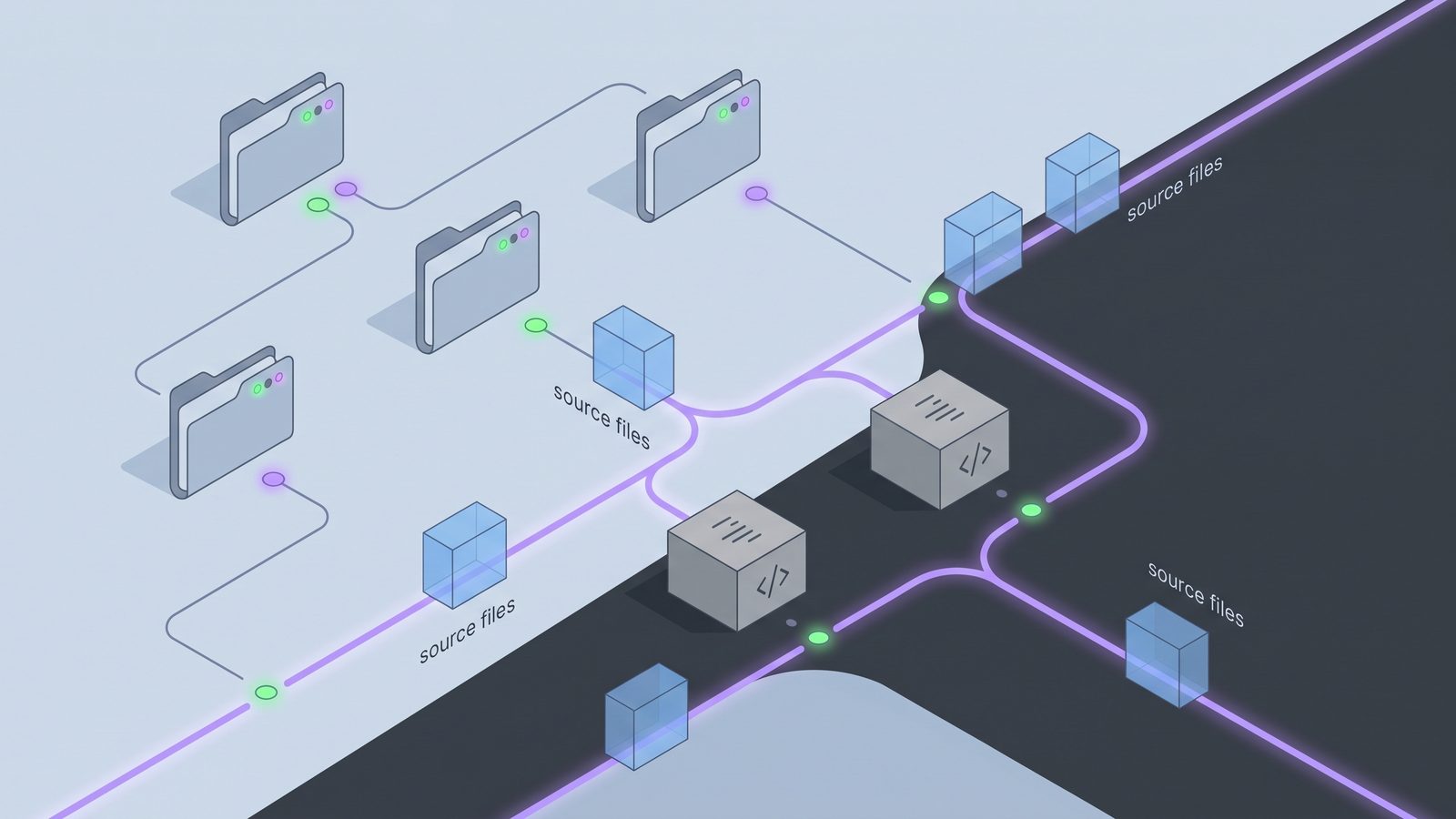
Lsyncer is built for Mac developers who want the filtered-backup workflow without maintaining long rsync commands or guessing whether a scheduled script ran. It syncs selected folders while skipping the usual developer noise: node_modules, .git, virtual environments, build output, and caches.
It does not change how Apple’s iCloud servers work, and it is not a replacement for Git. The healthier setup is simple: keep active repositories local, use Git for source history, and sync a clean copy to a destination you choose. Lsyncer makes that workflow visible and repeatable on macOS. It is a one-time $19.99 purchase, not a subscription.
Related reading
- Force iCloud Drive sync on Mac — safe ways to nudge a stale queue without making developer file churn worse.
- iCloud stuck on syncing on Mac — how to tell a broken account from a noisy developer folder.
- iCloud Drive not syncing on Mac — a broader troubleshooting guide for folders that never settle.
- How to stop iCloud from syncing certain folders — local folder,
.nosync, and filtered-sync options.
Best practices to prevent “waiting to update” loops
- Keep live code local. Use
~/Developer,~/Code, or~/Projectsfor active repositories. - Sync source, not generated state. Lockfiles are worth keeping. Installed packages and build caches are usually not.
- Schedule sync after noisy work. Back up after installs, builds, and test runs, not while watchers are still writing.
- Prefer Git remotes for history. iCloud Drive should not be the only place your commits exist.
- Watch file counts. A folder can be small in bytes but expensive in file events.
The goal is not to fight Finder’s status label. The goal is to design a workflow where iCloud Drive has a reasonable job. Give it a clean backup, and “waiting to update” is usually temporary. Give it a live dependency tree, and it can spend the afternoon trying to catch up.
FAQ: iCloud Drive waiting to update on Mac
Why does iCloud Drive say waiting to update on Mac?
It means iCloud Drive has not finished reconciling a file or folder change. The cause can be network delay, a stale sync process, a large folder scan, or ongoing file churn. Developer folders often trigger it because package managers and build tools create thousands of small files.
How do I fix iCloud Drive waiting to update?
Quit anything writing to the folder, wait to see whether Finder status changes, test with one tiny file, restart the Mac if the state is stale, and remove rebuildable generated folders from the synced copy. Avoid signing out of iCloud as a first step.
Can node_modules make iCloud Drive wait to update?
Yes. node_modules can contain tens of thousands of files. iCloud Drive may need to scan, hash, upload, compare, and retry those files individually. Sync the lockfile and source code instead, then rebuild dependencies locally.
Does .gitignore stop iCloud Drive from updating files?
No. .gitignore only controls Git. iCloud Drive does not read Git ignore rules. To keep folders out of iCloud, place the active project outside iCloud Drive, use .nosync for scratch folders, or sync a filtered copy with explicit exclusions.
Should I delete iCloud Drive cache folders to fix waiting to update?
Not as a first move. Deleting caches or signing out can trigger a larger rescan and increase the amount of sync work. Stop file churn, remove generated project folders, restart normally, and only use deeper resets when ordinary files also fail to sync.