

A Mac auto backup folder workflow sounds simple: choose a project folder, pick a destination, and let the Mac copy changes in the background. For developer projects, the hard part is not automation. The hard part is deciding what should never enter the backup in the first place.
Mac auto backup folder workflow for developers
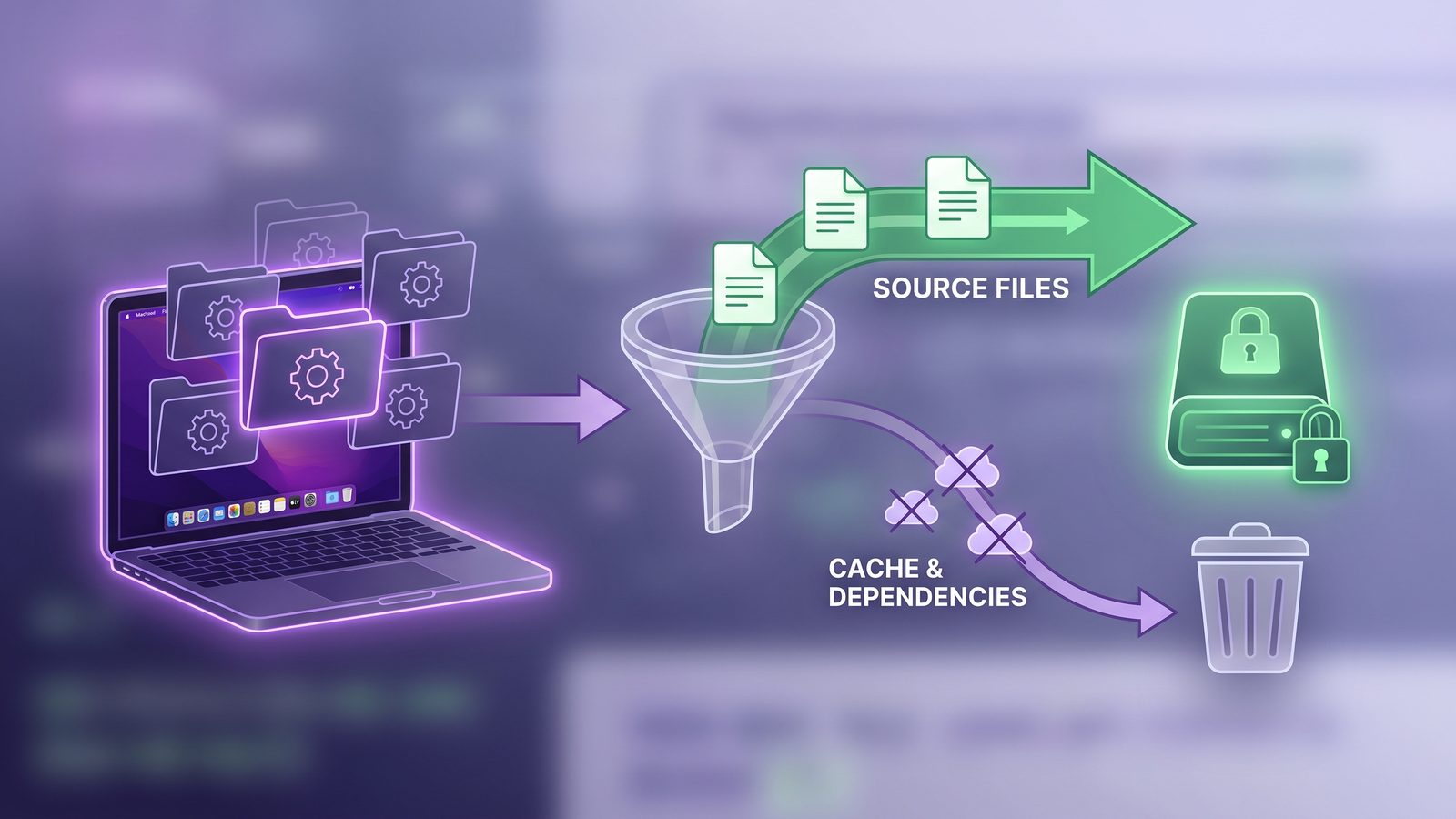
Most folder backup advice assumes your folder contains documents, photos, or design assets. Code projects behave differently. A single Node.js project may have a few hundred source files and tens of thousands of dependency files. A Python repo may create virtual environments, bytecode caches, test caches, and local databases. A Rails or Laravel app may generate logs, compiled assets, temporary uploads, and vendor trees. If an automatic backup tool watches the whole folder without filters, it backs up machine state as if it were project state.
The safer goal is a clean, repeatable project copy. That copy should contain the files needed to recover work: source code, lockfiles, migrations, scripts, configuration, documentation, tests, fixtures, and small assets. It usually should not contain node_modules/, .next/cache/, .venv/, venv/, vendor/bundle/, dist/, build/, coverage/, .pytest_cache/, target/, .gradle/, editor indexes, or temporary files.
A good developer backup stack is layered:
- Git keeps source history, branches, and reviewable changes.
- Time Machine or a whole-Mac backup protects the machine broadly.
- A filtered folder backup keeps clean project copies on an external drive, NAS, second folder, or cloud destination.
The rest of this guide focuses on the third layer: automatic folder backup for Mac projects that need exclusions, visible status, and restore confidence.
Why automatic folder backup breaks on code projects
File backup tools usually rely on filesystem events, periodic scans, or both. That is fine for normal documents. Developer tools create bursts of file churn that look like real work to a generic watcher. Running npm install can create, modify, and delete thousands of files under node_modules/. Running a test suite can rewrite coverage reports, snapshots, SQLite databases, and cache directories. A build tool can replace a whole dist/ tree in seconds.
When that churn hits an automatic backup job, three things happen:
- The queue fills with low-value files. The backup spends time copying dependencies and caches instead of the source changes you care about.
- The destination becomes harder to trust. A mirror full of generated folders can contain stale package state, platform-specific binaries, and half-written build output.
- The Mac does extra work at the worst time. Backup scanning competes with your editor, test runner, package manager, Docker, and browser.
This is the same reason cloud sync clients can struggle with active code folders. iCloud Drive, Dropbox, OneDrive, and Google Drive are good at user documents. They are not designed to understand which parts of a working tree are disposable. They see file events; they do not see intent.
Option 1: use Finder for a manual baseline
Finder is the simplest way to create a baseline copy. It is not a serious recurring backup system for code, but it is useful when you want a one-time archive before a risky refactor, migration, or OS upgrade.
Create a dated folder on the destination and copy the project:
/Volumes/BackupSSD/Projects/my-app-2026-07-29/Before copying, clean obvious generated folders if you do not need an exact working-tree snapshot:
rm -rf node_modules .next/cache dist build coverage .pytest_cacheDo this only when the files are genuinely reproducible and your work is committed or otherwise safe. The upside is simplicity. The downside is that Finder gives you no reusable ignore list, no dry run, no schedule, and no good record of what changed between backups.
Option 2: schedule rsync with excludes
If you are comfortable in Terminal, rsync is the most transparent way to automate a Mac folder backup. It can mirror a project, skip generated folders, delete files removed from the source, and print exactly what it changed. The main risk is path mistakes, so always test with a dry run first.
Create a reusable exclude file:
cat > ~/.rsync-dev-backup-excludes <<'EOF'
node_modules/
.pnpm-store/
.yarn/cache/
.next/cache/
.nuxt/
dist/
build/
coverage/
.turbo/
.vite/
.git/
.venv/
venv/
__pycache__/
.pytest_cache/
.mypy_cache/
vendor/bundle/
tmp/
log/
target/
.gradle/
.DS_Store
EOF
Preview the backup:
rsync -avnih --delete \
  --exclude-from "$HOME/.rsync-dev-backup-excludes" \
  ~/Developer/my-app/ /Volumes/BackupSSD/Projects/my-app/
The trailing slashes matter. ~/Developer/my-app/ means “copy the contents of my-app.” Without the trailing slash, you may create a nested my-app/my-app destination. Review the itemized output, especially lines beginning with deletes. If the preview is boring, remove only the n from -avnih:
rsync -avih --delete \
  --exclude-from "$HOME/.rsync-dev-backup-excludes" \
  ~/Developer/my-app/ /Volumes/BackupSSD/Projects/my-app/
For recurring automation, put that command in a script and run it with launchd. That works well if you are disciplined about logs and notifications. It works poorly if the script disappears into ~/bin and nobody checks whether it ran last week.
Option 3: use Time Machine for the machine, not the project
Time Machine is still worth keeping. It protects the broader Mac: system settings, apps, documents, and accidental deletes. But it is not a clean project backup strategy by itself. If your active projects contain node_modules, Python virtual environments, build folders, Docker volumes, or other churn-heavy output, Time Machine can spend a lot of energy preserving files you would never intentionally restore.
For developer projects, use Time Machine as the broad safety net and add a separate filtered project backup. If Time Machine gets stuck preparing a backup, check whether a dependency-heavy folder changed recently. Moving active repositories out of synced or frequently backed-up desktop/document folders often helps.
Option 4: use a Mac folder sync app with developer exclusions
A GUI app makes sense when the backup should be automatic but the workflow should stay visible. The requirements are specific: exclude generated folders, show last-run status, surface failures, support schedules, and make it obvious which source folder maps to which destination. A generic file copier that cannot skip node_modules is not enough for development work.
This is where LSyncer fits. It is a native macOS folder sync app built for developer projects: skip folders such as node_modules, .git, virtual environments, build output, and caches, then sync the clean parts of the project to another folder, drive, or cloud destination. It is $19.99 one-time, local by default, and intentionally narrower than a full backup suite.
If you already maintain good rsync scripts and actually read the logs, keep using them. If automatic backups fail because the script is annoying, the exclusions are scattered, or you cannot tell whether the last run succeeded, a small focused app can be more reliable than another shell fragment.
Best practices for automatic Mac folder backups
- Keep active projects in a local-only folder. Use
~/Developer,~/Code, or another folder outside iCloud Drive when package managers create heavy churn. - Back up rebuild inputs. Preserve manifests, lockfiles, config, docs, source, tests, scripts, migrations, and small assets.
- Exclude generated outputs by default. Start with
node_modules/,.venv/,dist/,build/, cache folders, logs, and coverage output. - Decide what to do with
.git/. Include it only if you need local branches, hooks, reflogs, or unpushed commits. Otherwise, let the remote Git host be the history layer. - Use dry runs before delete-enabled mirrors. Deletes are normal in mirrored backups, but they should never be surprising.
- Test restores. Copy the backup to a scratch folder and run
npm ci,pnpm install --frozen-lockfile,pip install -r requirements.txt, or your project’s equivalent. - Watch status, not vibes. A backup you never verify is a hope. Keep visible last-run timestamps, logs, and failure signals.
Related reading
- Backup tool for Mac developers — how Git, Time Machine, rsync, and filtered sync fit into one recovery plan.
- Sync folder to external hard drive on Mac — build a clean SSD backup that skips dependency junk.
- rsync exclude-from Mac — create reusable exclude files for recurring developer backups.
- Mac copy folder exclude files — make quick filtered project copies without dragging generated folders along.
- Folder compare and sync Mac — preview changes before a mirror writes to the destination.
FAQ
How do I set up a Mac auto backup folder for a code project?
Keep the active project in a local folder, choose a destination such as an external SSD or cloud mirror, exclude generated folders, run a dry-run preview if your tool supports it, then schedule the backup. The important exclusions are usually node_modules/, virtual environments, caches, build output, coverage, logs, and temporary files.
Should automatic folder backup include node_modules?
Usually no. Back up package.json and the lockfile, then reinstall dependencies after restore with npm ci, pnpm install --frozen-lockfile, or the package manager your project uses. Include node_modules only for a deliberate offline archive where rebuild speed matters more than backup size and cleanliness.
Can Time Machine automatically back up a single folder?
Time Machine backs up selected volumes rather than acting as a per-folder sync tool. You can exclude folders from Time Machine, but you do not get a project-specific mirror with custom rules, dry runs, or per-project status. Use Time Machine for whole-Mac recovery and a filtered folder sync workflow for clean project copies.
What is the safest automatic backup destination for Mac developer projects?
An external SSD, NAS folder, second local folder, or cloud destination can work. The destination matters less than the rules: keep source and lockfiles, skip generated churn, review delete behavior, and test restore. If using iCloud or another cloud folder, sync a filtered copy into the cloud instead of developing directly inside it.
Is a GUI folder sync app better than rsync on Mac?
Neither is universally better. rsync is excellent if you want command-line control and maintain the scripts. A GUI sync app is better when you want schedules, visible status, notifications, and per-folder exclusions without babysitting shell commands. For developer projects, whichever tool you choose must support exclusions.