

Backup Node.js project Mac workflows fail when they treat the project folder as one simple blob. Your source files may be small, but node_modules, build output, package-manager stores, logs, and framework caches can turn a clean backup into hundreds of thousands of filesystem operations. A reliable Mac backup should preserve the code you wrote, the lockfiles needed to rebuild it, and the project notes you cannot recreate — without copying disposable dependencies every time.
Backup Node.js project Mac: what actually needs to be saved?
The first mistake is assuming “back up the folder” means “copy every path under the folder.” A Node.js project contains several kinds of data, and they deserve different treatment.
- Source of truth:
src/,app/,pages/, tests, config files, documentation, migrations, scripts, and hand-written assets. - Rebuild instructions:
package.json,package-lock.json,pnpm-lock.yaml,yarn.lock,bun.lockb,.nvmrc,.node-version, and toolchain config. - Local-only state:
.env, local databases, sample uploads, temporary credentials, generated certificates, and private notes. These need a deliberate policy, not a blanket copy. - Disposable output:
node_modules,dist,build,.next/cache,.turbo, coverage reports, logs, and test caches.
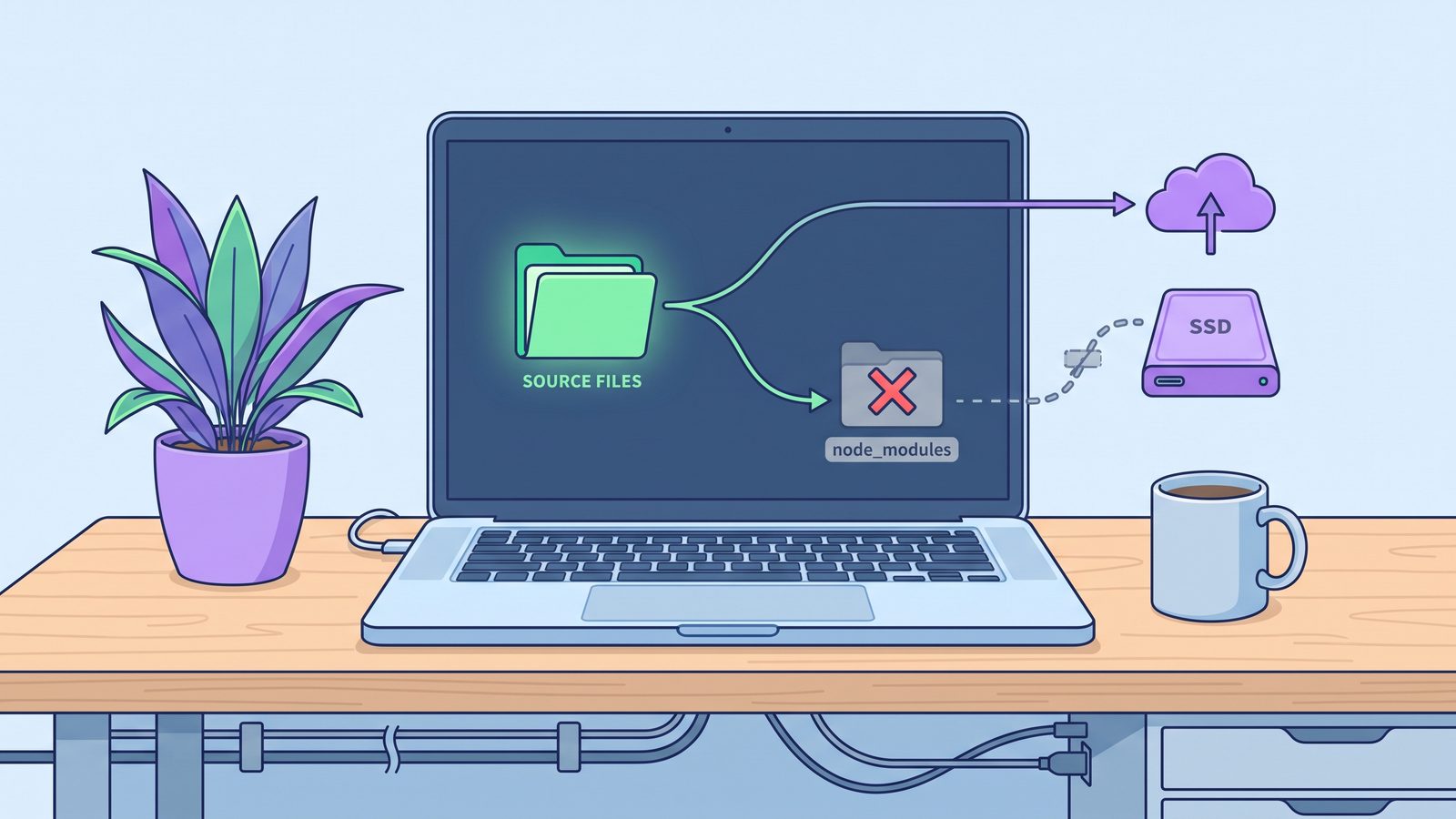
A good backup keeps the first two groups, reviews the third, and excludes the fourth. That is the difference between a backup you can restore and a slow archive of everything your tools happened to generate this week.
Why Node.js backups on Mac get slow
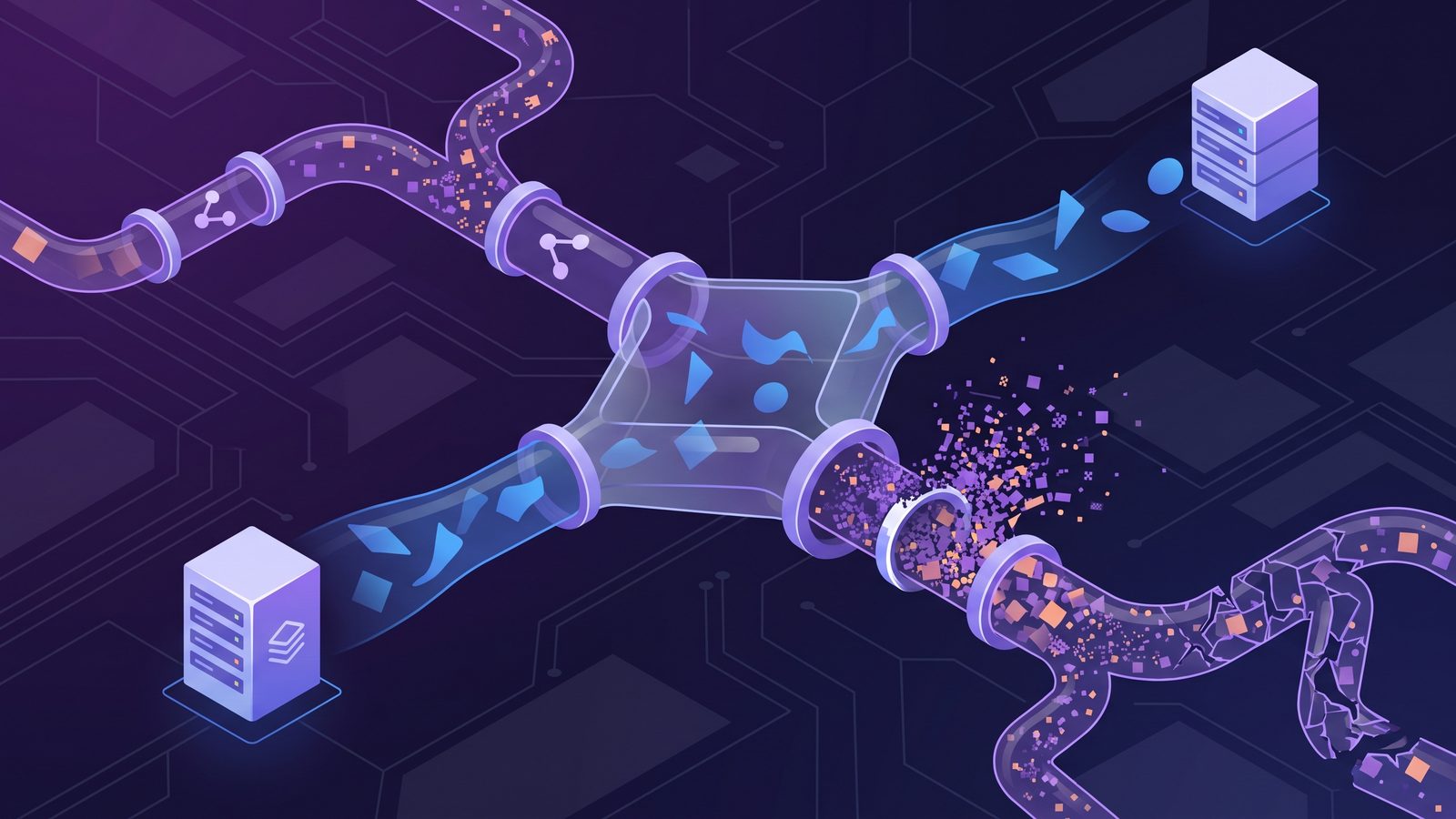
Node projects punish generic sync tools because the expensive part is not only total size. It is file count, directory traversal, metadata checks, and change notifications. A medium web app can have a few hundred source files and tens of thousands of dependency files. A monorepo can have far more once package-manager stores, framework caches, generated type files, and test artifacts are included.
On macOS, that file churn collides with several subsystems:
- File provider clients such as iCloud Drive, Dropbox, Google Drive, and OneDrive watch paths and queue changes. They do not know that
.next/cacheis disposable. - Spotlight and metadata services may inspect changed files while your backup or install is already busy.
- Antivirus or enterprise security tools can scan newly written dependency files.
- External drives magnify small-file overhead, especially on slower USB storage or network volumes.
That is why copying 500 MB of dependency files can feel worse than copying a 5 GB video. The backup process is doing tiny operations over and over, and the cloud client may start its own second pass before the first one finishes.
Fix 1: keep active Node.js projects outside cloud folders
If your working directory lives inside ~/Library/Mobile Documents/com~apple~CloudDocs, ~/Library/CloudStorage/Dropbox, ~/Library/CloudStorage/GoogleDrive-*, or another synced root, every install and build can become a cloud event. The simplest improvement is to move active work to a local-only path:
mkdir -p ~/Developer
mv ~/Library/Mobile\ Documents/com~apple~CloudDocs/Projects/my-app ~/Developer/my-app
Then back up a filtered copy from ~/Developer/my-app to the destination you want. That destination can be an external SSD, a NAS mount, or a cloud-synced folder. The important point is that the cloud client sees the clean backup, not the live development churn.
This also makes failures easier to reason about. If npm install is slow inside ~/Developer, debug Node, disk, or package-manager issues. If it is only slow inside a cloud folder, the sync client is part of the problem.
Fix 2: use Git for history, then back up the working tree
Git and backups solve different problems. Git records project history, supports collaboration, and lets you recover committed changes. A backup protects your machine-specific working state: uncommitted files, notes, local scripts, export files, and the folder layout around the repo.
For many solo developers, the safest setup is:
- Push commits and branches to GitHub, GitLab, Bitbucket, or a private remote.
- Keep
package.jsonand lockfiles committed. - Back up the working tree with generated folders excluded.
- Review secrets and local databases separately.
Whether you include .git/ in the backup depends on your risk model. Excluding .git gives you a smaller working-tree copy when a remote is your source of truth. Including .git can preserve unpushed branches, hooks, reflogs, and local-only history. If you do include it, make sure the backup destination is not also watched by a fragile cloud sync client that struggles with many small object files.
Fix 3: rsync a Node.js project with exclusions
rsync is a strong baseline because it can copy only changed files and skip paths you do not want. Start with a dry run:
rsync -avnih --delete \
  --exclude 'node_modules/' \
  --exclude '.next/cache/' \
  --exclude '.turbo/' \
  --exclude 'dist/' \
  --exclude 'build/' \
  --exclude 'coverage/' \
  --exclude '*.log' \
  ~/Developer/my-app/ /Volumes/DevBackup/my-app/
The n in -avnih means dry run. Keep it until the output looks boring. Remove it for the real sync:
rsync -avih --delete \
  --exclude 'node_modules/' \
  --exclude '.next/cache/' \
  --exclude '.turbo/' \
  --exclude 'dist/' \
  --exclude 'build/' \
  --exclude 'coverage/' \
  --exclude '*.log' \
  ~/Developer/my-app/ /Volumes/DevBackup/my-app/
For repeatable backups, move the rules into an exclude file instead of copying a long command around:
# ~/Developer/.node-backup-excludes
node_modules/
.next/cache/
.nuxt/
.svelte-kit/
.turbo/
.vite/
dist/
build/
coverage/
.cache/
*.log
.DS_Store
rsync -avnih --delete \
--exclude-from="$HOME/Developer/.node-backup-excludes" \
~/Developer/my-app/ /Volumes/DevBackup/my-app/Be careful with --delete. It is useful for mirrors because the destination stops accumulating removed files. It is also dangerous if your source path is wrong or an exclusion rule accidentally hides something you meant to keep. Use dry runs after every rule change.
Fix 4: use a filtered sync app for scheduled backups
Command-line backups are excellent when you want total control. They are less pleasant when you also want schedules, visible status, alerts, and a UI for changing exclusions without editing shell scripts. That is where a focused Mac sync app can be a better fit.
Lsyncer is built around this developer-folder model: choose a source and destination, exclude node_modules, .git, virtual environments, build output, and caches, then run the sync manually or on a schedule. It is a native macOS app with a one-time $19.99 price, so it suits developers who want clean project backups without maintaining a personal pile of rsync snippets.
The principle is the same whether you use rsync, Lsyncer, or another tool: the backup policy should know the difference between source files and generated files.
What to exclude from Node.js backups on Mac
Usually exclude
node_modules/and package-manager stores that can be recreated..next/cache/,.nuxt/,.svelte-kit/,.vite/, and.turbo/.dist/,build/,coverage/, temporary files, and logs..DS_Storeand other macOS metadata that adds noise.
Review before excluding
.git/, because it may contain unpushed local history..env, because it may be required for restore but may also contain secrets.- Local databases, uploads, and fixtures, because they may be disposable in one project and vital in another.
- Generated clients or checked-in build artifacts, because some teams intentionally commit them.
Restore-test your Node.js backup
A backup is not finished until you have restored it somewhere boring. Create a scratch directory, copy the backup there, and rebuild from lockfiles:
mkdir -p ~/RestoreTest
cp -R /Volumes/DevBackup/my-app ~/RestoreTest/my-app
cd ~/RestoreTest/my-app
npm ci
npm test
If the project uses pnpm, use pnpm install --frozen-lockfile. If it uses Yarn Berry, use yarn install --immutable. If it needs a specific Node version, verify .nvmrc, .node-version, or volta configuration is included. A restore test catches the subtle mistakes: excluded config, missing sample data, old generated clients, or a lockfile that was never committed.
Best practices for Node.js project backups on Mac
- Keep active work in a local-only folder. Use
~/Developeror~/Code, then sync a clean copy outward. - Commit lockfiles. The lockfile is what makes a dependency tree reproducible.
- Prefer filtered backups over whole-folder cloud sync. Cloud clients are not built to understand generated dependency churn.
- Document project-specific exceptions. If a generated folder is required, write down why it is included.
- Run a restore drill after changing exclusions. If
npm ciand tests pass from the backup, the policy is probably sane. - Treat secrets separately. Do not rely on a general folder backup as your secrets-management strategy.
Related reading
- iCloud Drive taking up space on Mac — clean up local iCloud storage by moving active projects local and excluding generated files.
- Backup Git repository local Mac projects — decide when to push, mirror, include
.git, or sync a filtered working-tree copy. - npm install slow on Mac — diagnose dependency installs slowed by cloud sync, watchers, and generated-file churn.
- Time Machine stuck preparing backup on Mac — troubleshoot backup preparation stalls caused by dependency and cache churn.
- rsync exclude-from Mac — keep reusable exclusion rules for developer backups.
- Backup tool for Mac developers — choose between Git, Time Machine, rsync, and filtered folder sync for clean project recovery.
- Sync folder to external hard drive on Mac — build a clean local SSD backup without copying dependency junk.
- File sync for Mac developers — compare Finder, rsync, iCloud, and filtered app workflows.
FAQ
Should I back up node_modules on a Mac?
Usually no. Back up package.json, the lockfile, source files, and config instead. Recreate dependencies with npm ci, pnpm install --frozen-lockfile, or the package-manager command your project expects. Include node_modules only for unusual offline or archival requirements.
Should a Node.js project backup include .git?
Include .git if you need a full offline clone with local branches, hooks, reflogs, and unpushed work. Exclude it if your Git remote is the source of truth and you want a clean working-tree backup. Make the choice deliberately, especially if the destination is watched by iCloud Drive or another cloud client.
What is the safest way to back up a Node.js project to iCloud Drive?
Do not develop directly inside iCloud Drive. Keep the active project in ~/Developer, then sync a filtered copy to iCloud that excludes node_modules, build output, caches, and logs. That gives iCloud fewer files to index and upload.
Is Time Machine enough for Node.js project backups?
Time Machine is useful for machine-level recovery, but it may still waste space and time on dependency folders unless you exclude them. Many developers use Time Machine for broad protection plus a separate filtered project backup for portable restores.
How often should I restore-test a project backup?
Test after changing exclusion rules, moving backup destinations, or adopting a new framework or package manager. For important work, a monthly restore drill is a practical baseline: copy the backup to a scratch folder, install from the lockfile, and run the project's test or build command.