

When Time Machine is stuck preparing backup on Mac, the problem is often not one giant file. For developers, it is usually a workspace full of tiny generated files: node_modules/, .next/cache/, Python virtual environments, Ruby bundles, test coverage, and build output. Time Machine has to inspect what changed before it copies data, so a normal dependency install can turn the preparing phase into a long, noisy filesystem walk.
Time Machine stuck preparing backup on Mac? Start with developer folders
Time Machine's “Preparing backup” state is not wasted time. macOS is building a view of what changed since the last snapshot, deciding what needs to be copied, and reconciling metadata with the backup destination. On a typical Mac, that is mostly documents, photos, app data, and a manageable set of changed files. In a development workspace, the shape of the data is completely different.
A single npm install can add or replace tens of thousands of files. A frontend dev server can rewrite caches while you work. A Python test run can fill __pycache__/ and .pytest_cache/. A Ruby app can update vendor/bundle/. Even if the total size is not huge, the number of filesystem entries is high. Time Machine has to look at directories, file metadata, extended attributes, symlinks, package shims, and files that may disappear moments later.
This is why the symptom often appears after ordinary development work rather than after a large document edit. You changed three source files, but your tooling touched thousands of generated files around them. Time Machine sees the whole filesystem event trail, not your intent.
Why Time Machine preparing backup takes forever with node_modules
node_modules/ is a worst-case folder for general-purpose backup tools. It contains deeply nested directories, package metadata, executable shims, optional platform packages, symlinks, license files, type definitions, and cache-like content. Package managers also create temporary paths and rename files into place. That creates a burst of change events that can keep backup preparation busy even when the files are not valuable for recovery.
Time Machine is built to recover your Mac. It is not a package-manager-aware tool. It does not know that node_modules/ can be recreated from package.json and package-lock.json, pnpm-lock.yaml, or yarn.lock. It does not know that .next/cache/ can be rebuilt. Unless you exclude or separate those folders, they enter the same backup path as source code and design files.

How to diagnose Time Machine stuck preparing backup on Mac
Do the simple checks first. A stalled backup can be caused by a sleeping disk, a network destination, low free space, or a previous interrupted run. But if you are a developer and the issue happens after installs or builds, inspect the workspace before you start deleting backup history.
1. Check the obvious backup conditions
- Keep the Mac awake and connected to power for the first pass.
- Make sure the backup disk or network share is mounted and not almost full.
- Open Time Machine settings and confirm the selected destination is the one you expect.
- If you use a network destination, test a small Finder copy to the same share.
If those checks fail, fix the destination first. Generated files make backup preparation slower, but they are not the only possible cause.
2. Find project folders with heavy file counts
File count matters. A 400 MB dependency tree with 70,000 files can be more painful for preparation than a single 4 GB archive. To inspect a workspace, run:
cd "$HOME/Developer"
find . -name node_modules -prune -print | head
find . -name .next -prune -print | head
find . -name .venv -prune -print | head
Then sample the size and count of a suspect folder:
du -sh my-app/node_modules my-app/.next 2>/dev/null
find my-app/node_modules -type f 2>/dev/null | wc -l
You do not need perfect numbers. You are looking for the obvious backup traps: dependency folders, generated caches, and build output living inside a path that Time Machine backs up.
3. Separate source from generated output
A clean project backup should preserve the recipe for the project, not every generated ingredient currently on disk. Keep these files in your recoverable set:
- Handwritten source:
src/,app/,lib/, tests, scripts, migrations, docs. - Project metadata:
package.json,pyproject.toml,Gemfile,go.mod, config templates. - Lockfiles:
package-lock.json,pnpm-lock.yaml,yarn.lock,poetry.lock,Gemfile.lock. - Small fixtures and local notes that are not stored in Git or another system.
Treat these as rebuildable or disposable unless your project has an unusual reason to keep them:
node_modules/,.pnpm-store/,.yarn/cache/.next/cache/,.turbo/,dist/,build/,coverage/.venv/,venv/,__pycache__/,.pytest_cache/vendor/bundle/, temporary files, logs, screenshots from test runs, local database dumps you do not intend to preserve
Fix Time Machine preparing backup with developer-safe options
There are several ways to stop generated files from keeping Time Machine busy. Pick the one that matches how much control you want and how much terminal work you are willing to maintain.
Option A: use Time Machine exclusions
Open System Settings → General → Time Machine → Options, then add folders you do not want backed up.
- Good for broad folders like
~/Developer/sandbox/or a cache directory. - Easy to review later.
- Awkward for per-project patterns such as every
node_modules/folder.
Option B: back up a filtered mirror
Create a clean copy of each project that includes source and lockfiles but skips generated output. Let Time Machine back up that mirror instead of the live workspace.
- Better for repeatable developer backups.
- Keeps the backup destination smaller and easier to restore.
- Requires a script or folder sync app to keep the mirror current.
Create a filtered mirror with rsync
If you prefer the terminal, use an exclude file and preview every destructive change. For example:
# ~/Developer/.backupignore
node_modules/
.pnpm-store/
.yarn/cache/
.next/cache/
.turbo/
dist/
build/
coverage/
.venv/
venv/
__pycache__/
.pytest_cache/
vendor/bundle/
tmp/
*.log
.DS_Store
Preview the mirror first:
rsync -avhn --delete --exclude-from="$HOME/Developer/.backupignore" \
  "$HOME/Developer/my-app/" \
  "$HOME/ProjectBackups/my-app/"
If the dry run shows only the files you expect, run the real sync by removing -n:
rsync -avh --delete --exclude-from="$HOME/Developer/.backupignore" \
  "$HOME/Developer/my-app/" \
  "$HOME/ProjectBackups/my-app/"
The trailing slashes matter. my-app/ means “copy the contents of this folder.” Without the slash, rsync copies the folder itself into the destination. Also treat --delete with respect: it is correct for a mirror, but it will delete files from the destination if you point it at the wrong place.
Use Lsyncer for recurring clean project backups
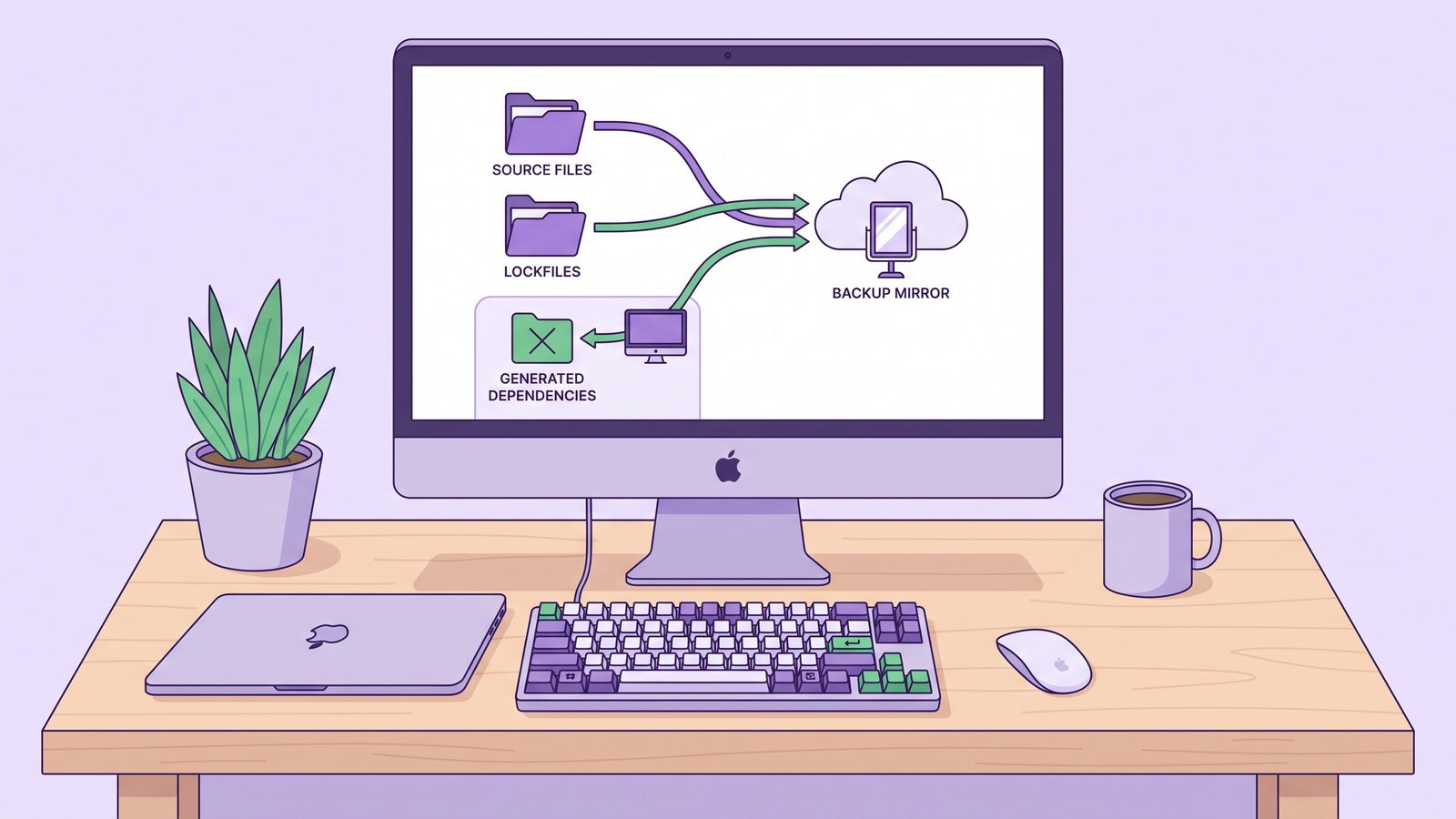
For recurring backups, the hard part is not writing one rsync command. It is keeping the command reviewed, scheduled, logged, and visible. Lsyncer is a native macOS folder sync app built for developer projects. It can skip common generated folders such as node_modules, .git, virtual environments, and build output, then sync the files that are useful for recovery.
A practical workflow is simple: keep active projects in ~/Developer/, use Lsyncer to maintain a filtered mirror in ~/ProjectBackups/ or on an external drive, and let Time Machine back up the mirror. Time Machine still protects the Mac. Lsyncer keeps dependency churn out of the path that Time Machine has to prepare.
That is not an argument against Time Machine. It is an argument for giving Time Machine cleaner inputs. System recovery and developer project mirroring are different jobs.
Best practices to prevent Time Machine stalls
- Keep active code outside cloud-synced folders. Avoid working directly inside iCloud Drive, Dropbox, Google Drive, or OneDrive when the project has dependency folders.
- Exclude generated folders at the highest safe level. If an entire scratch workspace is disposable, exclude the workspace rather than chasing every cache inside it.
- Back up lockfiles, not dependency folders. A lockfile plus source code is usually a better recovery artifact than yesterday's
node_modules/. - Push Git work before excluding
.git/. If you keep local-only commits, branches, stashes, or tags, back them up intentionally before filtering Git internals. - Test one restore. Copy the filtered backup to a temporary folder, install dependencies, and run the test suite or app. A backup workflow is only real after a restore test.
- Watch for secrets. Do not blindly mirror
.envfiles, certificates, local database dumps, or private keys to destinations that other people or cloud tools can access.
Related reading
- Exclude folders from Time Machine on Mac shows how to keep dependency folders and build output out of Mac backups.
- Rsync dry run on Mac explains how to preview a filtered mirror before copying or deleting files.
- Backup Node.js project on Mac covers clean project recovery without preserving
node_modules. - File sync for Mac developers compares Finder,
ditto,rsync, cloud sync, and app workflows.
FAQ
Why is Time Machine stuck preparing backup on Mac?
Time Machine can stay in the preparing phase when macOS has a large set of changed files to inspect, when the backup destination is slow or unavailable, or when a previous backup was interrupted. Developer folders make this worse because dependency installs and build tools create many small files quickly.
Should I cancel Time Machine if it is preparing for a long time?
If this is the first backup after a big change, let it run while the Mac is awake and connected to power. If it repeatedly sits for hours after normal development work, check for generated folders such as node_modules/, .next/cache/, .venv/, and build output in backed-up paths.
Can node_modules make Time Machine slow?
Yes. node_modules often contains tens of thousands of files, symlinks, metadata files, and package artifacts. Time Machine has to inspect that churn before copying. Most projects can recreate node_modules from source and lockfiles, so it is usually better to exclude it or back up a filtered mirror.
Is it safe to exclude developer folders from Time Machine?
It is safe only when you know what replaces that backup. Excluding generated folders is usually fine. Excluding an entire workspace can be risky if it contains local-only source, unpushed Git history, notes, assets, or database dumps. Use a filtered backup that keeps project files and skips rebuildable output.
How do Lsyncer and Time Machine work together?
Use Time Machine for full-Mac recovery and Lsyncer for clean project mirrors. Lsyncer can sync source files while skipping generated folders, then Time Machine can back up that cleaner mirror without preparing against every dependency file in your live workspace.