

OneDrive exclude folder from sync is a common search when a Mac developer notices the real problem too late: OneDrive is processing thousands of project files that should never have entered the cloud queue. A Node.js install, Python virtual environment, Ruby bundle, or build cache can make OneDrive look stuck even when it is technically working. The fix is not to make dependency folders sync harder. The fix is to keep generated developer folders out of the synced path.
OneDrive exclude folder from sync on Mac: the developer version
OneDrive is good at ordinary document sync: Word files, PDFs, spreadsheets, design exports, and a small number of folders that change at human speed. A developer workspace changes at tool speed. Package managers create large directory trees in seconds. Test runners write coverage reports. Framework dev servers rewrite caches. Git updates object databases and lock files. Editors and language servers add their own indexes.
That difference matters because sync cost is not only measured in megabytes. File count, metadata churn, path depth, permissions, timestamps, hashes, conflict tracking, and retry state all add overhead. A folder with 80,000 tiny files can be more annoying for a sync client than a single large video. When the noisy folder lives under OneDrive, every install and rebuild becomes cloud sync work.
For most projects, the files worth preserving are source code, lockfiles, docs, migrations, configuration, small assets, and notes. The files you can recreate are dependencies, caches, generated bundles, logs, coverage output, and most build directories. OneDrive does not know that distinction by default. It sees a folder tree and tries to keep it consistent.
Why OneDrive gets stuck on node_modules and build folders
A fresh JavaScript project can add tens of thousands of files under node_modules. The same pattern appears outside Node.js too: .venv in Python, vendor/bundle in Ruby, target in Rust, .gradle and build in JVM projects, and framework caches such as .next, .nuxt, .vite, or .turbo. These folders are optimized for local execution, not cloud sync.
When those folders sit inside OneDrive, several things happen at once:
- The queue grows by file count. OneDrive has to observe, classify, hash, upload, or reconcile each path.
- The target keeps moving. A dev server may rewrite a cache while OneDrive is still processing the previous version.
- macOS does duplicate work. Spotlight, endpoint security, editor watchers, Git tools, and OneDrive can scan the same tree.
- Conflicts become more likely. Generated files are poor collaboration artifacts. They change often and are easy to recreate.

Fix 1: keep active projects out of OneDrive
The most reliable fix is architectural: do not develop inside the OneDrive folder. Move active projects to a local workspace:
mkdir -p ~/Developer
mv ~/OneDrive/Projects/my-app ~/Developer/my-app
Then reinstall generated dependencies from the project manifests:
cd ~/Developer/my-app
npm ci
For Python, recreate the environment instead of syncing it:
cd ~/Developer/my-python-app
python3 -m venv .venv
source .venv/bin/activate
pip install -r requirements.txt
This keeps your editor, package manager, test runner, and Git operations on normal local storage. OneDrive can still be useful, but it becomes a destination for a clean backup rather than a live participant in every file write.
Fix 2: use OneDrive sync settings for broad folder boundaries
OneDrive for Mac lets you choose account folders and use Files On-Demand behavior. Those settings can help when an entire top-level folder does not need to be present on a machine. If your Projects folder is under OneDrive, review whether that whole folder should be synced at all.
The limitation is precision. OneDrive settings are not the same as a developer ignore file. They do not reliably mean, “sync src but ignore node_modules inside this same project.” If a project directory remains inside the OneDrive tree, you should assume OneDrive may observe the generated folders under it.
Fix 3: sync a clean copy into OneDrive with rsync
If you are comfortable with Terminal, rsync is a solid way to create a filtered backup. Keep the source in ~/Developer and send a cleaned copy to a OneDrive destination:
rsync -av --delete \
  --exclude 'node_modules/' \
  --exclude '.git/' \
  --exclude '.next/' \
  --exclude '.nuxt/' \
  --exclude '.vite/' \
  --exclude 'dist/' \
  --exclude 'build/' \
  --exclude 'coverage/' \
  --exclude '.turbo/' \
  ~/Developer/my-app/ \
  ~/OneDrive/CodeBackups/my-app/
Run a dry run first, especially when --delete is involved:
rsync -avn --delete \
  --exclude 'node_modules/' \
  --exclude '.git/' \
  --exclude 'dist/' \
  ~/Developer/my-app/ \
  ~/OneDrive/CodeBackups/my-app/
Read the output. A good backup should include files such as src/, tests, docs, package.json, lockfiles, migrations, and small assets. It should not dump a wall of dependency packages or cache paths. If you see node_modules in the dry-run output, fix the exclude pattern before running the real sync.
For non-Node stacks, extend the list: .venv/, venv/, __pycache__/, .pytest_cache/, vendor/bundle/, tmp/, target/, .gradle/, out/, logs, and local database files are common candidates. Treat secrets separately. Do not accidentally copy .env, private keys, production certificates, or dumps into a shared OneDrive folder.
Fix 4: use a Mac folder sync app with visible exclusions
A script is fine for one project and one destination. It becomes more fragile when you maintain several projects, external drives, mounted shares, OneDrive folders, scheduled runs, and different rules for JavaScript, Python, Ruby, and native builds. At that point, the problem is not whether rsync can do it. It can. The problem is whether you can keep the workflow understandable and visible.
Lsyncer is built for this developer-folder case. You choose a local source such as ~/Developer/my-app, choose a destination such as ~/OneDrive/CodeBackups/my-app, and keep the exclusion rules visible. It skips common generated folders such as node_modules, .git, virtual environments, build output, and caches, while still letting you add custom rules for your project.
The point is not to replace OneDrive. OneDrive can still store the clean backup and make it available to another Mac. Lsyncer sits before OneDrive and makes the folder developer-shaped first. It is a native macOS app with scheduling, visible run status, alerts, and a one-time $19.99 Mac App Store purchase instead of a subscription.
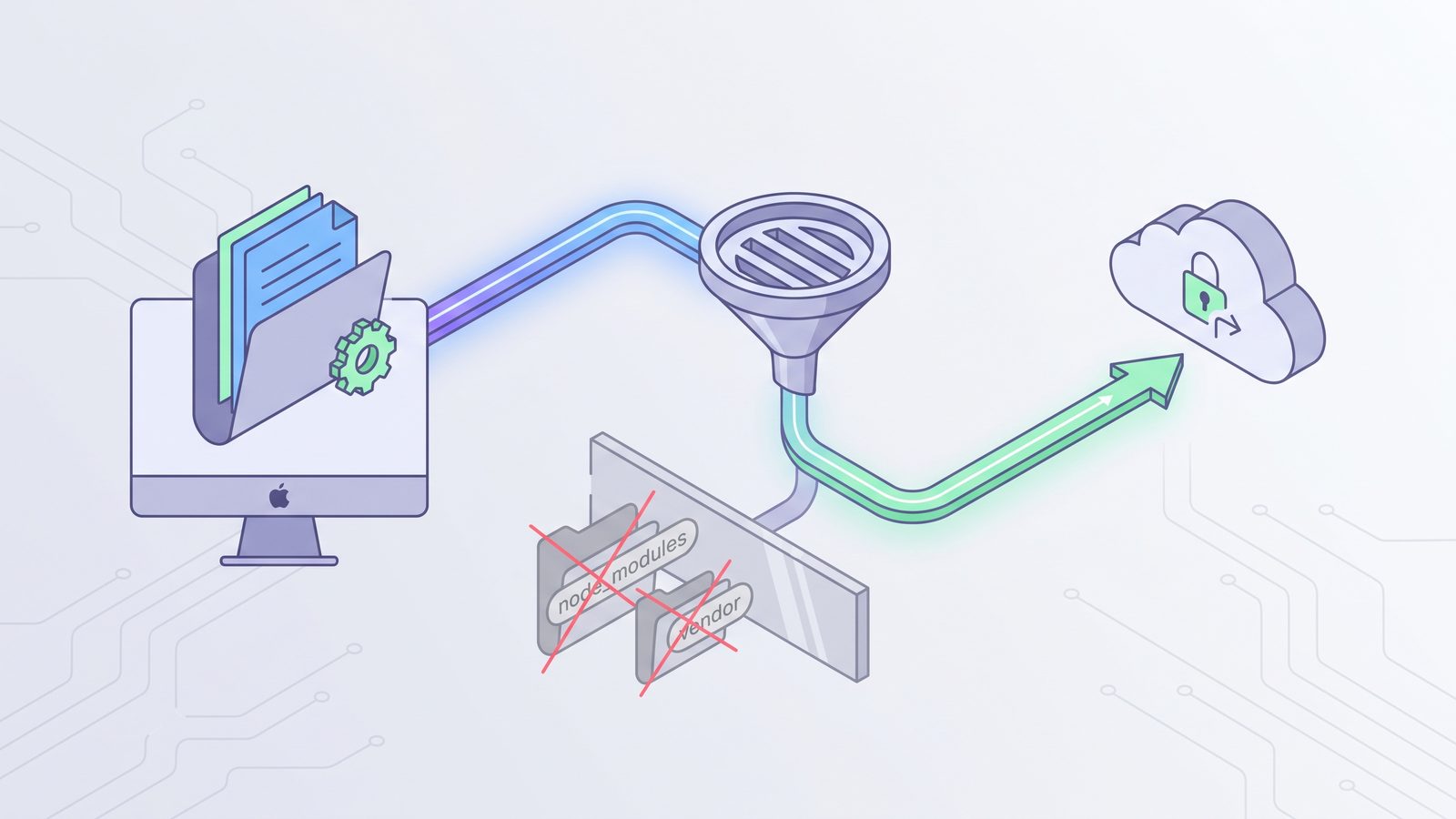
What to exclude from OneDrive developer backups
src/, app/, lib/, tests, docs, migrations, small assets, package.json, lockfiles, pyproject.toml, Gemfile, config templates, project notes, and restore instructions.
node_modules/, .git/, .next/, .nuxt/, .vite/, .turbo/, dist/, build/, coverage/, .venv/, vendor/bundle/, target/, logs, temp files, and IDE indexes.
Best practices for OneDrive and Mac developer folders
- Use Git for source history. OneDrive is not a replacement for commits, branches, reviews, and remote repositories.
- Keep the hot workspace local. Put active projects in
~/Developer,~/Code, or another non-cloud folder. - Sync a filtered mirror. Make OneDrive receive a clean copy after generated files are excluded.
- Back up the recipe. Preserve lockfiles and setup docs so dependencies can be recreated after restore.
- Test restore regularly. Copy the backup to a temporary folder, reinstall dependencies, and run a build or test command.
- Make failures visible. Whether you use scripts or an app, check the last run and avoid silent stale backups.
Related reading
- Google Drive exclude folder from sync on Mac — the same filtered-mirror pattern for Google Drive users.
- Box Drive exclude folder Mac — keep active code local and sync a filtered Box backup copy.
- Dropbox stuck syncing node_modules — why dependency folders clog cloud sync queues.
- Rsync exclude node_modules on Mac — safe command-line exclude patterns and dry-run checks.
FAQ
Can OneDrive exclude a folder from sync on Mac?
OneDrive can control broad synced folders and local availability, but it is not a developer-aware ignore system for subfolders inside a synced project. For precise exclusions such as node_modules or .venv, use a local workspace plus a filtered copy into OneDrive.
Should I put Node.js projects in OneDrive?
Usually no. Keep active Node.js projects outside OneDrive, commit source code to Git, and sync a filtered backup that excludes node_modules, build output, caches, and Git internals.
Why is OneDrive stuck syncing my Mac project folder?
Developer projects can generate thousands of tiny files that change quickly. OneDrive may appear stuck because it is processing file events, hashes, metadata, uploads, and conflict state for dependency folders and caches rather than only source files.
Is it safe to exclude node_modules from OneDrive?
Yes, if the project includes the correct manifest and lockfile. Back up package.json plus package-lock.json, pnpm-lock.yaml, or yarn.lock, then recreate dependencies with npm ci, pnpm install --frozen-lockfile, or your team’s standard command.
What is the best way to back up Mac developer folders to OneDrive?
The best pattern is a local working folder plus a filtered OneDrive destination. Use reviewed rsync excludes or a dedicated Mac app such as Lsyncer to copy durable project files while skipping dependencies, caches, build output, and secrets.