

Dropbox stuck syncing node_modules is a familiar Mac developer failure mode: the code you care about changed in seconds, but Dropbox keeps chewing through thousands of package files, lock contention, and metadata events long after the actual work is done. The fix is not to wait harder. It is to stop treating generated dependencies as backup material.
Dropbox stuck syncing node_modules on Mac: what is really happening
A modern JavaScript app can have a tiny human-written surface area and a huge generated dependency tree. A starter project might include a few dozen source files, one lockfile, and 40,000 files under node_modules. A monorepo can multiply that across apps, packages, build caches, and test fixtures. Dropbox sees file system changes, not developer intent. When npm install, pnpm install, or yarn install rewrites dependencies, Dropbox has to inspect, hash, index, upload, and reconcile a flood of small files.
That work is expensive because the bottleneck is often not raw bandwidth. It is file count. Each tiny package file still has a path, permissions, modification time, content hash, extended attributes, and a place in the sync database. While Dropbox works through the queue, macOS may also be indexing the same paths with Spotlight, scanning them with endpoint security tools, and updating Finder metadata. The result feels like Dropbox is “stuck,” even when it is technically making slow progress.
For developer folders, the better question is not “How do I make Dropbox upload node_modules faster?” It is “Why is node_modules in the synced folder at all?” Dependency folders are usually reproducible from package.json plus a lockfile. Your source code, migrations, configuration, docs, and lockfiles belong in a backup. The installed package tree usually does not.
Quick triage when Dropbox is stuck on node_modules
Start by confirming whether Dropbox is stuck on a real source file or on generated dependency churn. The fastest signal is file count. From Terminal, compare the project root to the dependency tree:
cd ~/Developer/my-app
find . -type f | wc -l
find node_modules -type f | wc -l
If the second number dominates, you have a dependency-tree sync problem. Next, check whether the files are changing while Dropbox is trying to upload them:
find node_modules -type f -mmin -10 | head -50A package install, test watcher, dev server, code generator, or postinstall script can keep touching files. Dropbox may finish one batch only to receive another. Stop the dev server, pause installs, and give Dropbox a few minutes. If the queue clears only after the project becomes idle, the root cause is churn rather than a broken Dropbox account.
Also check whether the project lives directly inside ~/Dropbox. That is the highest-friction setup. Every install happens inside the cloud provider’s watched tree. A safer layout is to keep active work in a local folder such as ~/Developer or ~/Code, then sync a filtered copy into Dropbox for backup or transfer.

Fix 1: move active projects out of Dropbox
The most reliable fix is boring: do not run active development inside the Dropbox folder. Move the project to a local workspace and keep Dropbox as a destination, not the live working directory.
mkdir -p ~/Developer
mv ~/Dropbox/Projects/my-app ~/Developer/my-app
Then reinstall dependencies locally if needed:
cd ~/Developer/my-app
npm ci
This removes Dropbox from the hottest part of the workflow. Your editor, bundler, package manager, test runner, and Git operations now operate in a normal local directory. Dropbox can still be useful, but it should receive a clean copy of files you intend to preserve, not every temporary package artifact created during development.
If you need the project available on another Mac, push source changes through Git and use Dropbox for supporting files or a filtered backup. Git is better at source history. Dropbox is better at file availability. Combining both is fine; asking Dropbox to behave like a package-manager-aware development environment is where things break down.
Fix 2: use Dropbox ignore for existing dependency folders
Dropbox supports marking files or folders as ignored on desktop clients. On macOS, you can often set the ignore attribute with xattr:
xattr -w com.dropbox.ignored 1 ~/Dropbox/Projects/my-app/node_modulesFor a workspace with multiple projects, find dependency folders first:
find ~/Dropbox/Projects -name node_modules -type d -pruneThen apply the attribute to the specific folders you want Dropbox to ignore. Be conservative. Do not run broad destructive commands over your whole home directory. Start with one project, let Dropbox settle, and confirm the ignored folder no longer appears in the sync queue.
There are two caveats. First, Dropbox client behavior changes over time, so treat ignore attributes as a Dropbox feature to verify on your installed version, not as a permanent filesystem law. Second, ignore rules help once the folder exists, but they do not make the rest of your developer workflow clean. Build output, caches, virtual environments, coverage reports, and temporary bundles can still create noise unless you handle those too.
Fix 3: sync a clean copy into Dropbox with rsync
If you want a Dropbox backup without moving raw dependency trees into Dropbox, use a filtered mirror. Keep the active project in ~/Developer, then copy only the durable parts into a Dropbox destination:
rsync -av --delete \
  --exclude 'node_modules/' \
  --exclude '.git/' \
  --exclude '.next/' \
  --exclude '.nuxt/' \
  --exclude 'dist/' \
  --exclude 'build/' \
  --exclude 'coverage/' \
  --exclude '.turbo/' \
  --exclude '.vite/' \
  ~/Developer/my-app/ ~/Dropbox/CodeBackups/my-app/
Run it as a dry run first:
rsync -avn --delete \
  --exclude 'node_modules/' \
  --exclude '.git/' \
  --exclude '.next/' \
  --exclude 'dist/' \
  ~/Developer/my-app/ ~/Dropbox/CodeBackups/my-app/
Read the output before removing -n. The --delete flag makes the destination mirror the source, which is useful for backups but dangerous if you point at the wrong path. If you want to preserve deleted files in Dropbox, omit --delete and periodically review old files manually.
For Python, Ruby, Rust, and JVM projects, add ecosystem-specific generated directories: .venv/, venv/, __pycache__/, .pytest_cache/, vendor/bundle/, tmp/, target/, .gradle/, and out/. The principle is the same: sync source and configuration, skip files the toolchain can recreate.
Fix 4: use a developer-aware sync app for recurring backups
A hand-written rsync command is a solid fix when you are comfortable maintaining scripts. It becomes less pleasant when you have several projects, multiple destinations, different exclusion sets, and a schedule you need to trust. At that point, you are no longer running one command; you are maintaining a private backup system.
Lsyncer is built for the local Mac version of this problem. You choose a source folder such as ~/Developer/my-app, choose a destination such as ~/Dropbox/CodeBackups/my-app, and keep developer exclusions visible instead of hidden in shell history. It is designed around folders that commonly break cloud sync: node_modules, .git, virtual environments, build output, and caches.
The point is not to replace Dropbox. Dropbox can still move the clean destination copy between machines. Lsyncer sits before it and keeps the noisy files out. That means Dropbox sees a smaller, calmer set of changes, while you keep working in a normal local project folder. Lsyncer is a one-time $19.99 Mac App Store purchase, not a subscription.
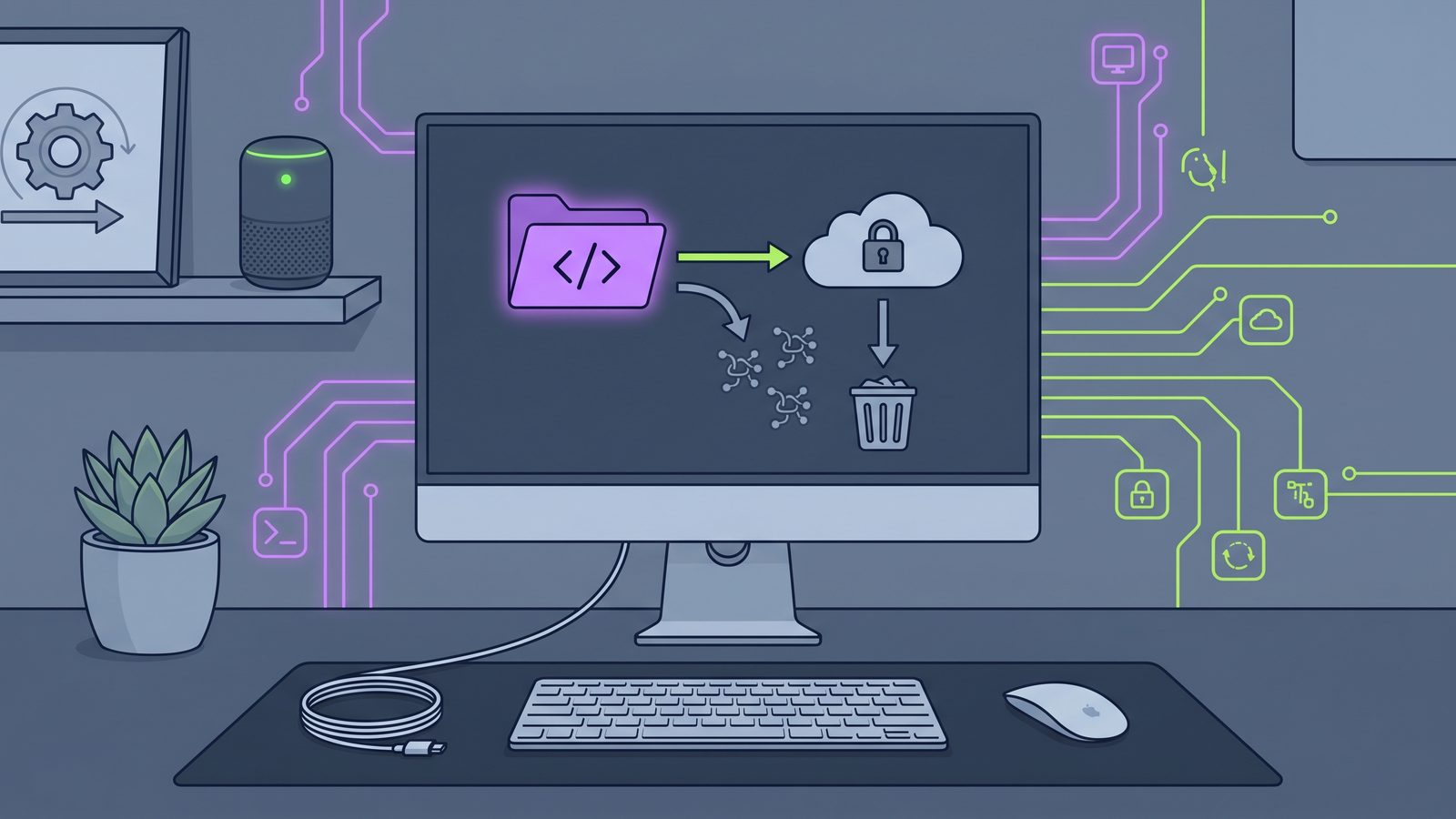
Best practices for Dropbox and developer folders
- Keep active repositories local. Use
~/Developer,~/Code, or another non-cloud workspace for daily development. - Commit source to Git. Dropbox is not a replacement for repository history, branches, reviews, or remote recovery.
- Sync a filtered backup copy. Put the clean copy in Dropbox, not the live project with every generated file.
- Preserve lockfiles. Back up
package-lock.json,pnpm-lock.yaml,yarn.lock, and equivalent dependency manifests. - Exclude generated folders consistently. Treat
node_modules, build output, framework caches, coverage reports, and local virtual environments as rebuildable. - Make failures visible. Whether you use scripts or a GUI, check that scheduled copies ran and that Dropbox is not silently stuck on stale generated files.
Related reading
- Rsync exclude node_modules on Mac — safe exclude patterns, dry runs, and clean backup commands for Node projects.
- Box Drive exclude folder Mac — use the same filtered-copy pattern when Box Drive is the cloud destination.
- Syncthing exclude
node_moduleson Mac — apply the same generated-file filtering to peer-to-peer sync. - OneDrive exclude folder from sync on Mac — use a filtered mirror when OneDrive is processing dependency folders.
- How to sync node_modules without freezing your Mac — the broader dependency-tree problem across cloud sync tools.
- File sync for Mac developers — compare Finder,
ditto,rsync, iCloud, and filtered app workflows.
FAQ
Why is Dropbox stuck syncing node_modules?
node_modules contains thousands of small generated files. Dropbox has to track metadata, hash content, upload changes, and reconcile conflicts for each file. The queue can look stuck because file count and constant churn dominate the sync work.
Should I put Node.js projects directly in Dropbox?
It is usually better to keep active Node.js projects outside Dropbox and sync a filtered copy into Dropbox. Live development inside a watched cloud folder makes every package install, build, and test run part of the sync workload.
Can I ignore node_modules in Dropbox?
Dropbox desktop clients support ignored files and folders, and on macOS you may be able to apply the ignore attribute with xattr -w com.dropbox.ignored 1 path/to/node_modules. Verify it on your installed Dropbox version and remember to exclude other generated folders too.
Is it safe to delete node_modules from a backup?
Yes, if the project has the right manifest and lockfile. A Node dependency tree can usually be recreated with npm ci, pnpm install --frozen-lockfile, or yarn install --immutable. Do not delete source files, lockfiles, local data, or uncommitted work.
What should I sync instead of node_modules?
Sync source files, configs, docs, migrations, scripts, lockfiles, and assets that cannot be regenerated. Skip dependency folders, build output, caches, coverage reports, and temporary files unless you have a specific reason to preserve them.