

Sync files between Mac and PC is easy when you mean documents. It gets harder when the folder is an active software project. A normal codebase contains source files, lockfiles, local configuration, Git history, dependency folders, virtual environments, caches, build output, and platform-specific junk. If you copy all of it between macOS and Windows, the sync becomes slower, noisier, and less reliable than the project itself.
Sync files between Mac and PC without copying generated files
The clean workflow is not “make the Mac folder and PC folder byte-for-byte identical.” For development work, that is usually the wrong goal. The better goal is to move the project inputs that let each machine reproduce the same working state: source code, tests, documentation, migrations, assets, dependency manifests, lockfiles, and reviewed configuration. Generated folders should usually be rebuilt on each machine.
That distinction matters because macOS and Windows disagree on details that developer tools touch constantly: executable bits, symlinks, case sensitivity, path separators, hidden files, file locking, antivirus scanning, and metadata. A sync tool can copy bytes, but it cannot always know whether node_modules/.bin/vite, .venv/bin/python, vendor/bundle/, or .next/cache/ belongs on the other operating system.
Why Mac-PC folder sync breaks on code projects
Most folder sync tools compare paths, modification times, file sizes, hashes, or filesystem events. That is reasonable for a folder of PDFs. It is not enough for a project folder that creates thousands of machine-generated files during normal work.
A single npm install may create tens of thousands of files under node_modules/. Python writes .venv/, __pycache__/, .pytest_cache/, and compiled bytecode. Ruby writes vendor/bundle/, tmp/, and logs. Front-end frameworks rewrite .next/cache/, .nuxt/, dist/, build/, and .vite/. Git stores object databases and locks under .git/. These files change frequently, and many of them are specific to one machine.
When you sync all of that between a Mac and a PC, four problems show up quickly:
- The queue gets huge. The sync spends most of its time scanning generated dependency trees instead of moving the source files you actually edited.
- Restores get less trustworthy. The destination may contain stale binaries, partial build output, or dependency artifacts created for the wrong OS.
- Development slows down. File watchers, package managers, Windows Defender, Spotlight, cloud clients, and sync tools can all compete for the same small files.
- Conflicts become meaningless. A conflict inside a cache directory is not useful information. It is noise caused by syncing files that should have stayed local.

Option 1: use Git for source code between Mac and PC
For source code, Git should be the primary cross-platform sync layer. It handles line endings, conflicts, history, review, branches, and collaboration better than any blind folder mirror. If both machines can reach GitHub, GitLab, Bitbucket, or a private remote, use Git for committed work and folder sync for supporting files that do not belong in the repository.
A simple handoff from the Mac might be:
git status
git add src tests package.json package-lock.json README.md
git commit -m "Checkpoint work"
git push origin feature-branch
On the PC:
git fetch origin
git switch feature-branch
git pull --ff-only
npm ci
The PC receives source and lockfiles, then builds its own node_modules/. That is exactly what you want. The weak spot is uncommitted work, local notes, generated screenshots, database seed files, or project assets that are intentionally outside Git. For those, use a filtered folder sync or backup layer.
Option 2: use a network share with filtered copy rules
If the Mac and PC are on the same network, a shared folder can work well as a handoff point. The share may live on the PC, on a NAS, or on an external drive that both systems can access. The important part is to define exclusions before the first copy.
From macOS, rsync can copy a clean project mirror to a mounted SMB share:
# ~/Developer/.cross-platform-syncignore
node_modules/
.pnpm-store/
.yarn/cache/
.next/cache/
.nuxt/
dist/
build/
coverage/
.turbo/
.vite/
.git/
.venv/
venv/
__pycache__/
.pytest_cache/
.mypy_cache/
vendor/bundle/
tmp/
log/
target/
.gradle/
.DS_Store
Thumbs.db
rsync -avnih --delete \
--exclude-from "$HOME/Developer/.cross-platform-syncignore" \
"$HOME/Developer/my-app/" \
"/Volumes/Projects/my-app/"The n in -avnih makes this a dry run. Review the output before allowing deletes. When the preview is correct, remove n:
rsync -avih --delete \
  --exclude-from "$HOME/Developer/.cross-platform-syncignore" \
  "$HOME/Developer/my-app/" \
  "/Volumes/Projects/my-app/"
Keep the trailing slashes. my-app/ means “copy the contents of this folder.” Without the trailing slash, rsync may create an extra nested directory depending on the destination.
Option 3: use cloud storage as a bridge, not the live project folder
iCloud Drive, Dropbox, Google Drive, OneDrive, and similar tools can move files between a Mac and a PC. They are not great places to run an active dependency-heavy project. A live project folder inside cloud storage means every package install, cache rewrite, and build output change enters a sync queue before you know whether the files matter.
The safer pattern is:
~/Developer/my-app/               # active Mac project, local only
~/Library/CloudStorage/.../my-app-clean/  # filtered mirror for handoff
Work locally. Then sync a filtered mirror into the cloud destination. The PC pulls a smaller, cleaner project copy and installs dependencies locally. If the cloud queue gets stuck, you are troubleshooting a filtered folder rather than a complete copy of every generated artifact.
This is especially useful if your real problem started with iCloud Drive trying to watch node_modules/. The same principle applies across providers: keep generated folders out of the cloud-synced path. Related guides cover why iCloud freezes when syncing node_modules, Google Drive folder exclusions on Mac, and OneDrive exclude-folder workflows.
Option 4: use an external drive formatted for both systems
An external SSD is often the simplest cross-platform bridge. Format choice matters. exFAT is readable and writable by both macOS and Windows without extra drivers, but it is not ideal for every backup policy. APFS is excellent on macOS but not native on Windows. NTFS is native on Windows and read-only by default on macOS without additional software. For a simple handoff drive, exFAT is usually the least surprising option.
Do not run active package installs directly on the shared external drive unless you have tested performance and reliability. Use it as a clean transfer or backup target. Copy source and lockfiles. Reinstall dependencies on the destination machine.
src/, app/, lib/, docs, tests, migrations, assets, package.json, lockfiles, pyproject.toml, Gemfile, README.md, and reviewed configuration.
node_modules/, .git/, .venv/, venv/, vendor/bundle/, dist/, build/, .next/cache/, .turbo/, coverage/, target/, logs, OS metadata, and IDE indexes.
Where LSyncer fits in a Mac-to-PC workflow
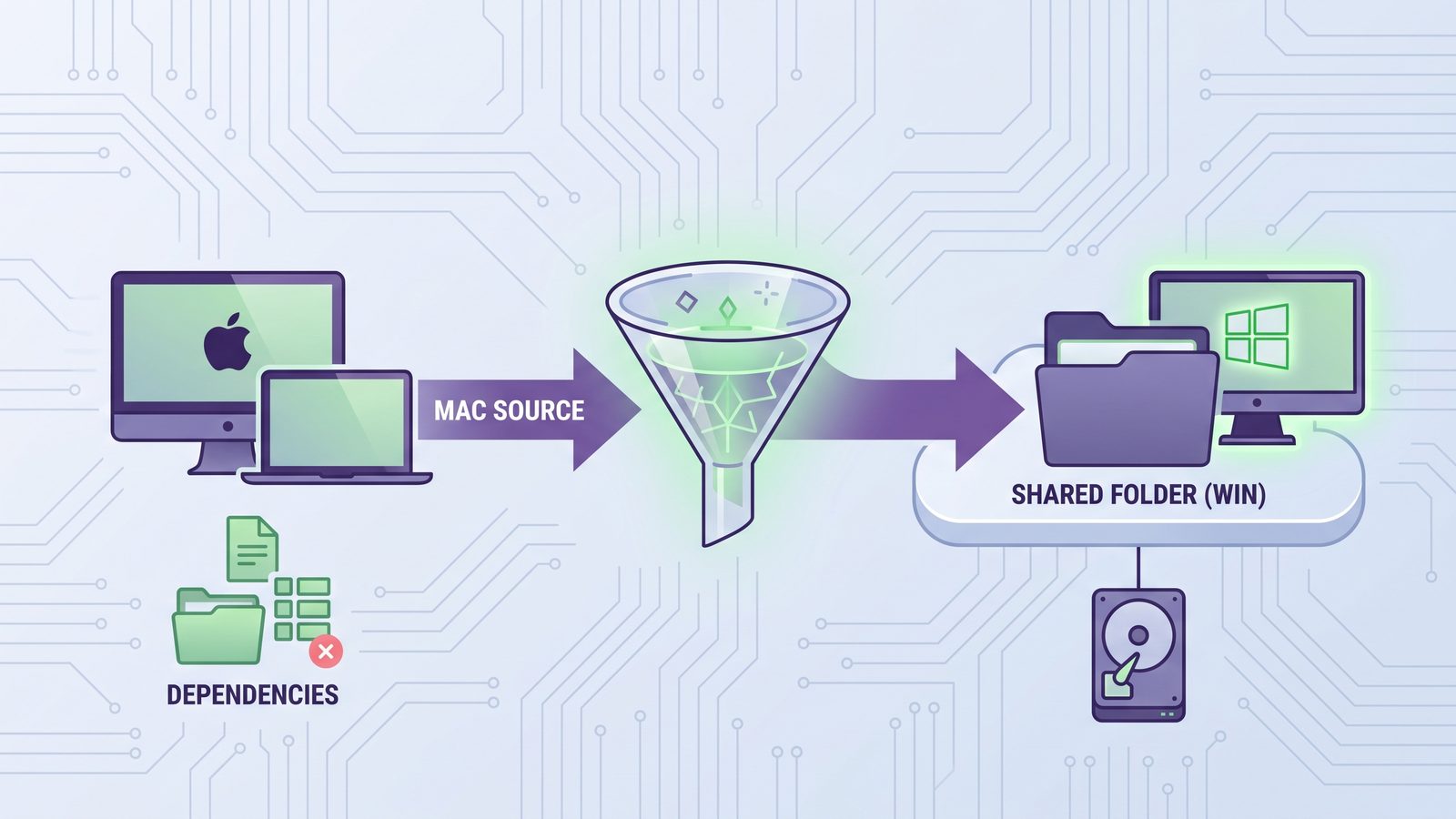
LSyncer is a native macOS folder sync app, so it runs on the Mac side of the workflow. It is useful when the Mac is your active development machine and you want a repeatable filtered mirror to a Windows-accessible destination: an SMB share, external drive, NAS folder, or cloud bridge. Instead of maintaining a fragile shell script, you can set up a sync job with developer-focused exclusions for node_modules, .git, virtual environments, build output, and caches.
That does not replace Git, and it does not make Windows dependency artifacts magically portable. It solves the boring operational part: keep a clean copy of the Mac project folder available somewhere else, show status, run on a schedule, and skip the folders that should never have entered the transfer. LSyncer is $19.99 one-time on the Mac App Store, with no subscription.
Cross-platform folder sync checklist
- Put active work in a local folder. Use
~/Developeror~/Codeon the Mac, not a live cloud-synced project directory. - Use Git for code history. Commit and push source changes whenever possible. Folder sync is a backup or handoff layer, not version control.
- Create exclusions first. Skip dependencies, caches, build output, virtual environments, OS metadata, and secrets before the first sync.
- Dry-run destructive mirrors. Preview delete behavior before syncing to a share or drive that contains real work.
- Reinstall dependencies per OS. Use
npm ci,pnpm install --frozen-lockfile,pip install -r requirements.txt, or the equivalent on the destination machine. - Test a restore. Copy the destination into a temporary folder on the PC, install dependencies, and verify the project opens or builds.
Related reading
- Sync files between two Macs — the same clean-handoff idea for a MacBook and desktop Mac.
- Sync folder to external hard drive on Mac — a practical external SSD workflow with developer exclusions.
- File sync for Mac developers — how to choose sync tools for dependency-heavy projects.
- Rsync dry run on Mac — preview copy and delete behavior before trusting a mirror.
FAQ
What is the best way to sync files between Mac and PC for development?
Use Git for source code, then add a filtered folder sync for files that are outside Git. Do not sync dependency folders, virtual environments, build output, caches, or OS metadata. Reinstall dependencies separately on each machine.
Should I sync node_modules between Mac and Windows?
Usually no. node_modules is large, noisy, and may contain platform-specific binaries or symlinks. Sync package.json and the lockfile instead, then run npm ci, pnpm install, or your package manager's clean install command on the destination.
Can iCloud Drive sync a project from Mac to PC?
iCloud for Windows can move files, but active developer folders are a poor fit for live cloud sync. Keep the project local on the Mac and sync a filtered mirror into the cloud destination if you need a PC-accessible copy.
What filesystem should I use for a Mac and PC external drive?
For simple cross-platform read/write access, exFAT is usually the easiest choice because macOS and Windows both support it natively. For full backup policies, permissions, or very large workflows, evaluate APFS, NTFS, or a NAS-backed filesystem based on where the drive primarily lives.
Does LSyncer run on Windows?
No. LSyncer is a macOS app. It fits a Mac-to-PC workflow by syncing from the Mac to a destination the PC can read, such as a shared folder, external drive, NAS, or cloud bridge, while skipping generated developer folders.