

If you need to exclude folders from Time Machine on Mac, start with the folders that create noise rather than recovery value. For developers, that usually means node_modules/, .git/, virtual environments, build output, package caches, test coverage, and framework caches. Time Machine is good at recovering documents. It is less pleasant when it has to keep scanning a project tree that rewrites thousands of small files every time you install dependencies.
Exclude folders from Time Machine on Mac when developer projects create backup churn
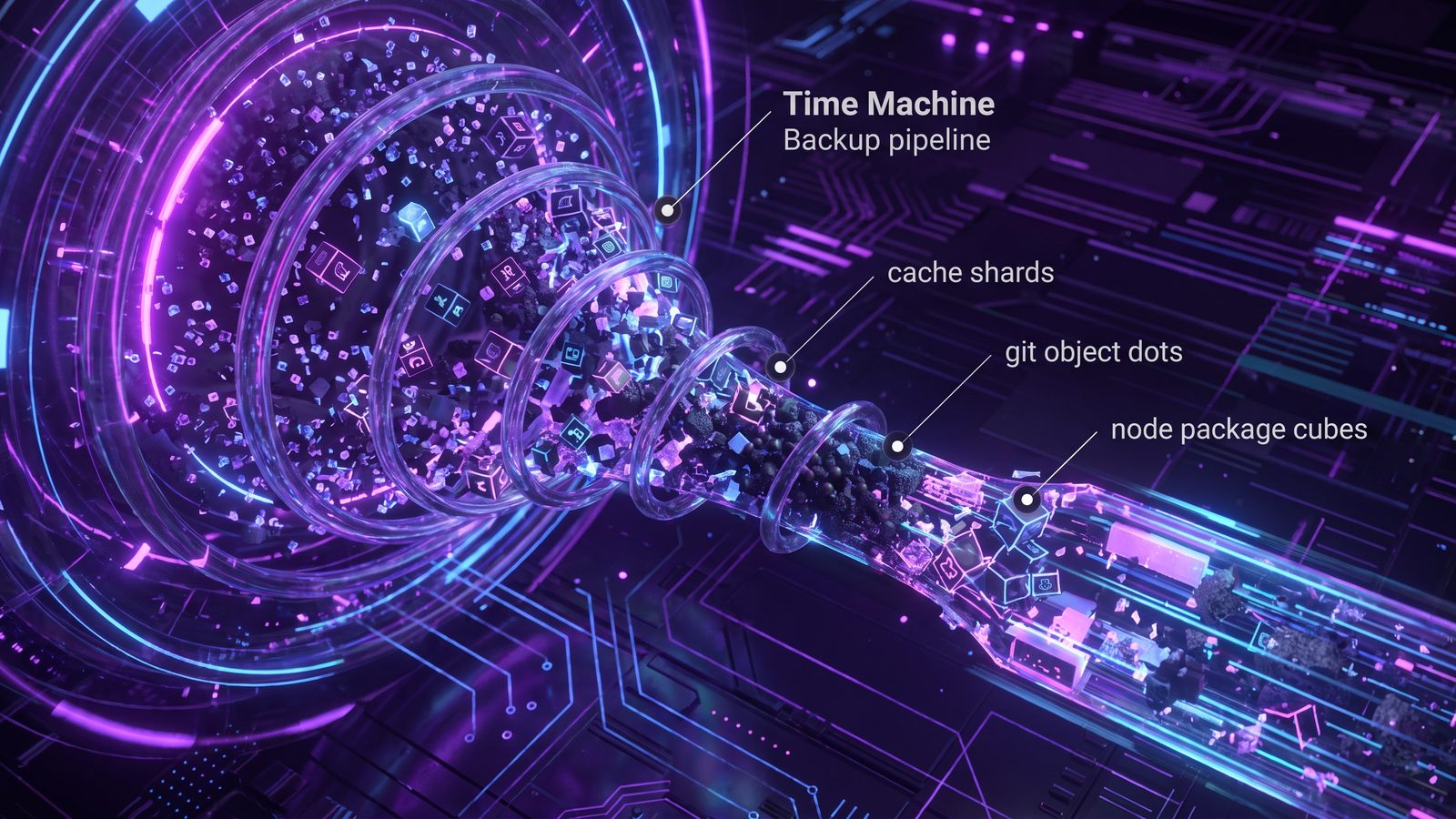
Time Machine works at the Mac backup level. It watches filesystem changes, prepares snapshots, and copies changed data to your backup destination. That model is useful for home directories, documents, photos, and app data. A code workspace behaves differently. One npm install can create or touch tens of thousands of files. A Python environment can add compiled bytecode and platform-specific packages. A frontend build can rewrite .next/cache/, dist/, coverage/, and temporary artifacts in bursts.
Those files are not equally worth backing up. Source files, configuration, migrations, scripts, docs, and lockfiles are the project. Dependency folders and build caches are usually outputs. You can recreate them from package-lock.json, pnpm-lock.yaml, yarn.lock, requirements.txt, poetry.lock, Gemfile.lock, or the build system. Backing up generated output costs time and disk space, but it does not always make restore safer.
Why Time Machine slows down on node_modules and build caches
The problem is not just size. A single 2 GB video file can be copied as one large object. A 500 MB node_modules/ tree may contain 80,000 files, nested directories, symlinks, package metadata, executable shims, and platform-specific binaries. Each file adds metadata work. The backup system has to decide what changed, walk directories, preserve attributes, and write data to the destination.
Developer folders also change in bursts. Package managers create temporary files, rename them into place, remove older versions, and rewrite lock-adjacent metadata. Build tools do the same with caches. If Time Machine prepares a backup during that churn, it may spend work on files that disappear minutes later. You see the symptom as a slow "Preparing backup" phase, large incremental backups after small code changes, or a backup disk filling faster than expected.
What folders should developers exclude from Time Machine?
Use this list as a starting point, then adjust it for each project. The safe rule is simple: if the folder is generated from source, lockfiles, or a package manager, you probably do not need it in every Time Machine snapshot.
Usually back up
src/,app/,lib/, and handwritten source filespackage.json, lockfiles,requirements.txt,pyproject.toml,Gemfile, andGemfile.lock- Docs, migrations, scripts, config templates, test files, design assets, and small fixtures
- Project notes that are not already stored elsewhere
Usually rebuild or keep local
node_modules/,.pnpm-store/, package manager caches.venv/,venv/,__pycache__/,.pytest_cache/vendor/bundle/,tmp/, logs, coverage reportsdist/,build/,.next/cache/,.turbo/,target/
The awkward entry is .git/. Git history is important, but .git/ is also a live database with locks, packs, refs, and object files. If your code is pushed to a remote Git host, backing up the working tree plus lockfiles may be enough. If you keep local-only branches or unpushed commits, do not casually exclude .git/ without changing your habits. Push your work, or create a separate bare mirror for local history.
How to exclude folders from Time Machine on Mac
macOS lets you exclude folders from Time Machine, but the interface is designed for a few large folders, not hundreds of per-project patterns. Use it for broad exclusions such as a whole cache directory or a local dependency workspace.
Option 1: exclude a folder in System Settings
- Open System Settings.
- Go to General, then Time Machine.
- Click Options.
- Add folders you do not want Time Machine to back up.
- Review the estimated backup size before you close the panel.
This is the most visible method. It is also easy to audit later. The downside is that it does not behave like a .gitignore file. If you want to exclude node_modules/ inside every project under ~/Developer/, the Time Machine UI is not a pleasant way to manage that. You either exclude the whole workspace, or you add individual folders as they appear.
Option 2: move generated folders into a non-backed-up workspace
Some teams keep active projects under ~/Developer/ and exclude that whole folder from Time Machine, then rely on Git remotes and a separate filtered backup for project files. That can work if your projects are properly pushed and you have a clear restore plan. It is risky if your workspace contains local-only experiments, drafts, screenshots, database dumps, or client files that never leave the Mac.
A safer variation is to keep disposable caches in known locations. Many package managers let you configure cache paths. Framework caches can often be cleaned with project commands. The more generated data you keep out of the main backup path, the less Time Machine has to inspect.
Option 3: create a filtered project mirror with rsync
If you want a backup destination that contains project files but skips dependency junk, rsync is the standard terminal tool. Keep an exclude file so you can review it instead of rebuilding the command every time:
# ~/Developer/.backupignore
node_modules/
.pnpm-store/
.git/
.venv/
venv/
__pycache__/
.pytest_cache/
vendor/bundle/
dist/
build/
.next/cache/
.turbo/
coverage/
tmp/
*.log
.DS_Store
Then run a dry run before copying anything:
rsync -avhn --delete --exclude-from="$HOME/Developer/.backupignore" \
  "$HOME/Developer/my-app/" \
  "$HOME/Backups/my-app/"
If the preview looks right, remove -n:
rsync -avh --delete --exclude-from="$HOME/Developer/.backupignore" \
  "$HOME/Developer/my-app/" \
  "$HOME/Backups/my-app/"
Be careful with --delete. It makes the destination match the source by deleting files that no longer exist in the source. That is correct for a mirror and dangerous when you point at the wrong destination. Dry runs are not optional here.
Option 4: use a dedicated folder sync app for recurring developer backups
For recurring backups, scripts become another thing to maintain. You need launch agents or cron-like scheduling, logging, notification, path review, and a way to spot stale runs. That is where a Mac folder sync app makes sense.
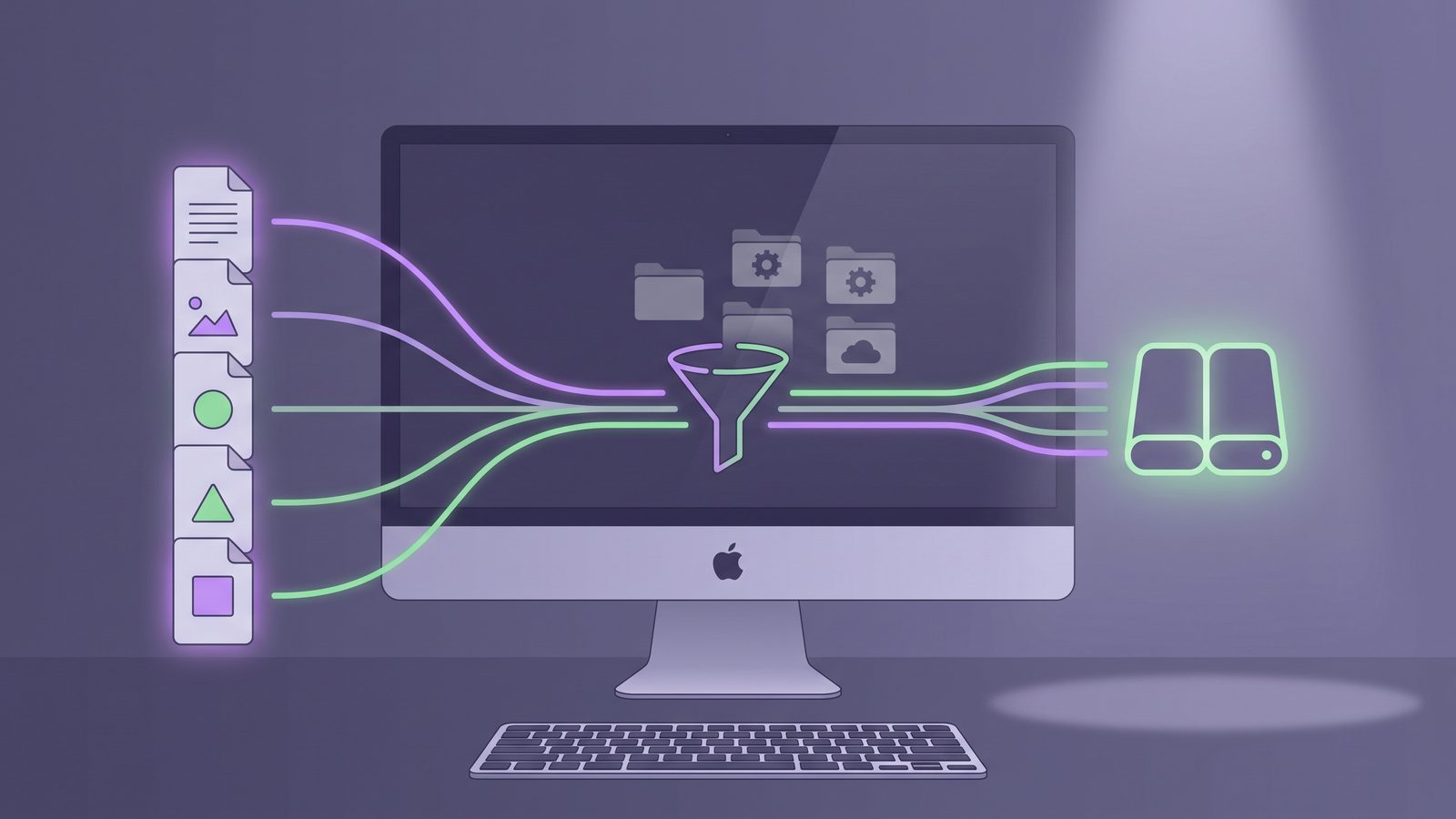
LSyncer is built for this developer-specific version of folder sync. It skips common generated folders such as node_modules, .git, virtual environments, and build output, then syncs the files that actually help you restore a project. You can point the destination at an external drive, another local folder, or a cloud-synced folder. The important part is that the cloud or backup tool receives a clean mirror instead of your live dependency storm.
That does not replace Time Machine for your whole Mac. Keep Time Machine for system-level recovery and broad user data. Use a filtered folder sync workflow for code projects where Time Machine's all-purpose model is too noisy. The two tools solve different recovery problems.
Best practices for Time Machine and developer projects
- Keep active work outside cloud-synced folders. Use
~/Developer/or~/Code/for day-to-day work, then sync a filtered mirror to iCloud, Dropbox, an external drive, or a NAS if you need one. - Commit and push often. Time Machine is not a substitute for Git history. If excluding
.git/makes you nervous, fix the Git workflow first. - Back up lockfiles. A restore without
package-lock.json,pnpm-lock.yaml,poetry.lock, orGemfile.lockmay install different dependency versions. - Test a restore. Copy the backup to a temporary location, reinstall dependencies, and run the project. A backup you have never restored is mostly a theory.
- Do not sync secrets by accident. Review
.envfiles, private keys, certificates, database dumps, and local credentials before sending a mirror into a shared or cloud destination.
Related reading
- Time Machine stuck preparing backup on Mac explains how developer file churn can keep the preparation phase busy.
- File sync for Mac developers explains why code folders need filtering before they are copied anywhere.
- Mac sync two folders compares Finder,
ditto,rsync, and app workflows for clean project mirrors. - Rsync exclude node_modules on Mac gives copyable patterns for dependency-heavy projects.
- How to stop iCloud from syncing certain folders on Mac covers a similar filtering problem for iCloud Drive.
FAQ
Should I exclude node_modules from Time Machine?
Usually yes. node_modules is generated from package.json and a lockfile, and it can contain thousands of small files. Back up the source and lockfile, then recreate dependencies with npm ci, pnpm install --frozen-lockfile, or the command your project uses.
Is it safe to exclude .git from Time Machine?
It depends on your Git habits. If every important branch and commit is pushed to a remote, excluding .git from a filtered project mirror is often reasonable. If you keep local-only commits, branches, stashes, or tags, push them or back up Git history separately before excluding .git.
Why is Time Machine preparing backup for so long?
A long preparing phase can happen when many files changed since the last backup. Developer folders make this worse because package installs and builds create many small files quickly. Excluding generated folders or backing up a filtered mirror reduces the amount of filesystem churn Time Machine has to inspect.
Can I use Time Machine and LSyncer together?
Yes. Use Time Machine for broad Mac recovery. Use LSyncer to create a clean project mirror that skips dependency folders, Git internals, virtual environments, and build output. Time Machine can then back up the clean mirror without tracking every generated file in your live workspace.
What is the best backup workflow for Mac developers?
Use Git for source history, Time Machine for general Mac recovery, and a filtered folder sync for project mirrors. The filtered mirror should include source, docs, config, tests, scripts, assets, and lockfiles. It should skip generated dependencies, caches, logs, coverage, and build output unless you have a specific reason to preserve them.